Inline Playlist Switching
Switch playlists on your live stream without any interruption. Learn how inline mode lets you temporarily play different content and automatically return to your main playlist.
Introduction
One of playout.video's most powerful features is the ability to switch what's playing on your live stream without stopping or interrupting the broadcast. Inline playlist switching lets you temporarily play different content, then automatically return to your main playlist when the temporary content finishes.
This means your viewers experience a seamless transition with zero downtime, no buffering, and no reconnection on their end.
How Inline Switching Works
Think of it like a TV channel cutting to a special segment and then returning to regular programming:
Your main playlist is playing normally (looping your regular content)
You activate inline mode with a different playlist
The stream seamlessly transitions to the inline playlist content
When the inline playlist finishes, the stream automatically returns to your main playlist
Your main playlist resumes exactly where it left off
The entire process is invisible to viewers. They see one continuous stream with different content appearing at different times.
When to Use Inline Switching
Scheduled Content Blocks
Play specific content at specific times without permanently changing your playlist:
Morning devotionals on a church stream, then back to sermons
News updates on a media channel, then back to regular programming
Special announcements on any channel, then back to normal content
Event Coverage
Temporarily switch to event-specific content:
Live event replays: switch to event footage, then return to regular content
Holiday specials: play Christmas or Halloween content for a few hours
Product launches: showcase new content temporarily
Content Testing
Try out new content without committing to a permanent playlist change:
Play a new video or series to gauge viewer response
Test different content types during specific time slots
Experiment with content order or themes
Ad Breaks or Sponsorships
Insert sponsored content or promotional material:
Play sponsor messages during peak hours
Insert promotional videos at scheduled intervals
Run campaign-specific content for a limited time
Setting Up Inline Switching
Manual Inline Switch
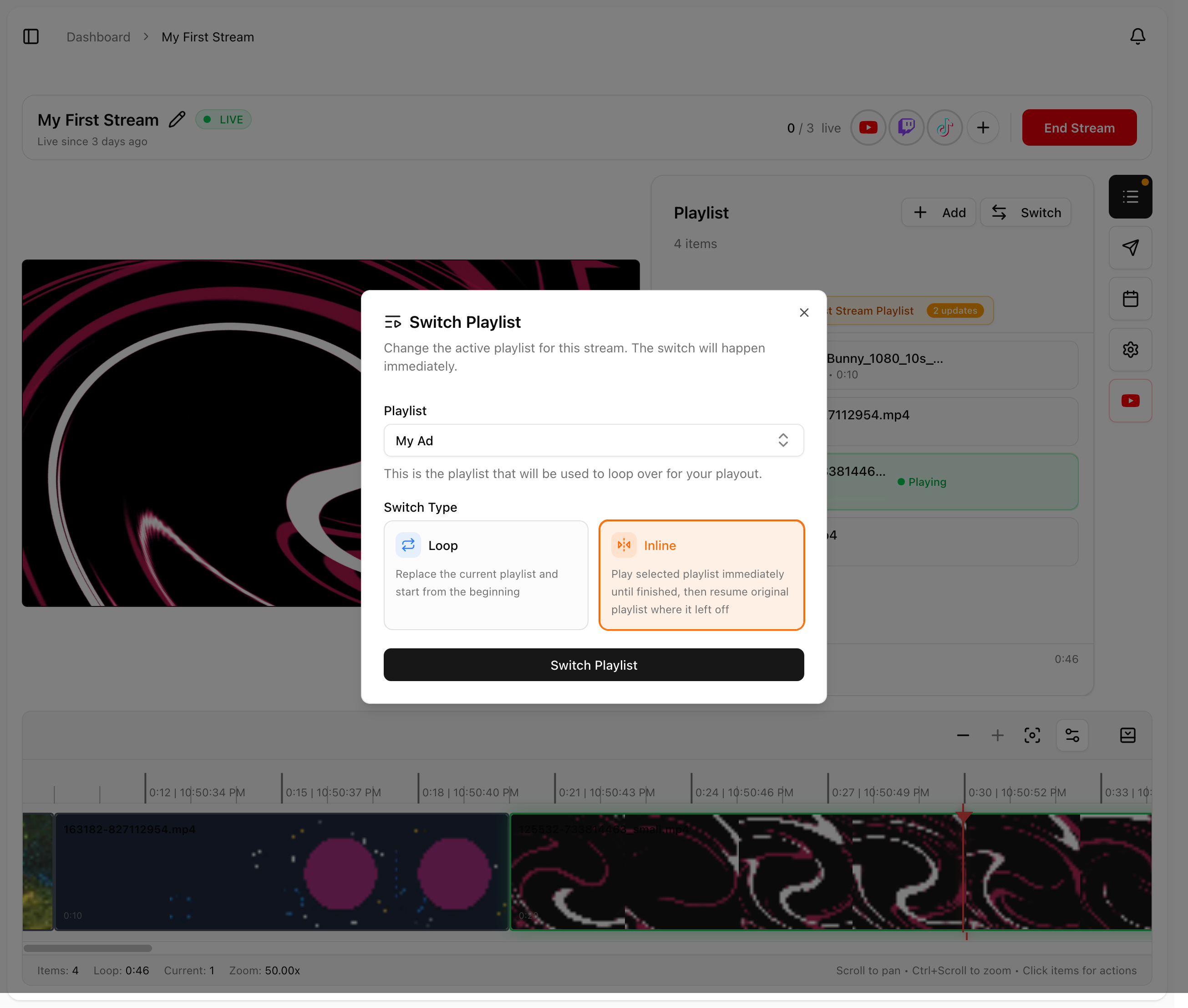
To switch playlists manually while your stream is running:
Open your live stream's management page
Go to the Playlist panel
Activate Inline Mode
Select the playlist you want to play temporarily
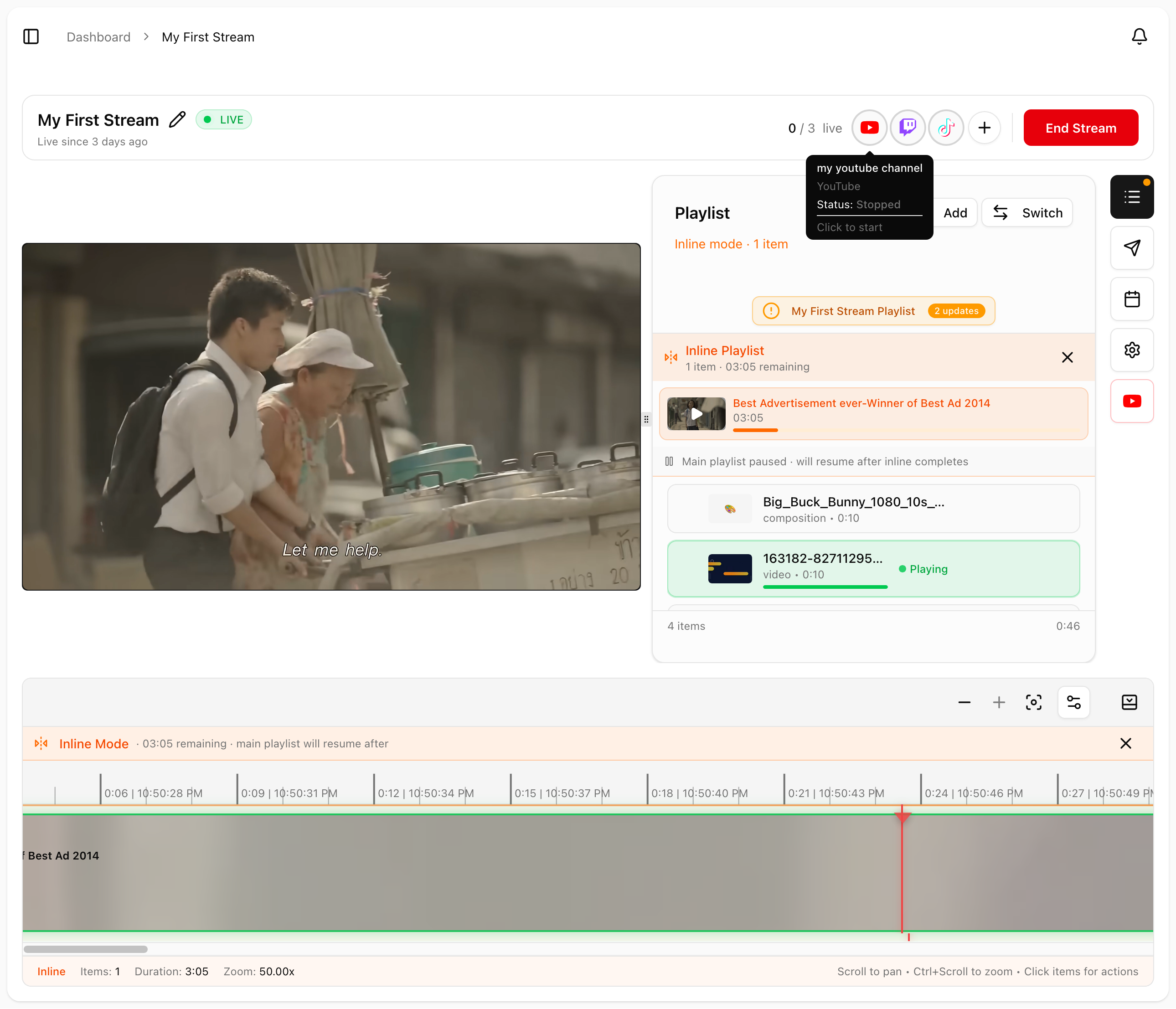
The stream transitions to the inline playlist
When the inline playlist finishes, your main playlist resumes automatically
You can also cancel inline mode at any time to immediately return to the main playlist.
Scheduled Inline Switch
Automate inline switches using the scheduling feature:
Go to Schedule in the sidebar
Click Add Schedule
Select Switch Playlist as the action type
Choose the playlist to switch to
Set the switch type to Inline
Set the timing (one-time or recurring with cron)
Save
The system will automatically activate inline mode at the scheduled time and return to the main playlist when the inline content finishes.
Example: Daily Special Content Block
Set up a recurring inline switch for a daily content block:
Create a playlist called "Daily Special" with your special content
Schedule an inline switch to "Daily Special" at
0 12 * * *(noon every day)The special content plays at noon, then the main playlist resumes
Inline vs. Permanent Switch
playout.video offers two types of playlist switches:
Inline Switch (Temporary)
Plays the new playlist temporarily
Automatically returns to the main playlist when done
Main playlist resumes where it left off
Best for: scheduled content blocks, events, testing
Permanent Switch
Replaces the main playlist entirely
Does not automatically revert
The new playlist becomes the main playlist
Best for: seasonal content changes, complete playlist refreshes
Choose the type that matches your intent when creating a scheduled switch.
Best Practices
Keep Inline Playlists Focused
Inline playlists work best when they're short and purposeful:
5-30 minutes of content is ideal for most inline switches
Very long inline playlists (hours) may confuse viewers who expect your regular content
If you need to play different content for extended periods, consider a permanent switch instead
Plan Your Transitions
Think about how the inline content flows with your main content:
Use jingles or transition videos at the start and end of inline playlists
Match the tone of inline content to your channel's overall vibe
Avoid jarring transitions (e.g., switching from calm music to loud action content)
Test Before Scheduling
Before setting up recurring inline switches:
Test the inline switch manually to make sure the content plays correctly
Verify the transition back to the main playlist is smooth
Check that all videos in the inline playlist are fully processed
Communicate with Viewers
If your inline content is significantly different from your regular programming:
Add a text overlay announcing the special content
Include a "Regular programming returns shortly" message
Use your stream description to mention scheduled content blocks
Combining with Other Features
Inline Switch + Destination Scheduling
Combine inline playlists with destination scheduling for platform-specific content:
At 6 PM: start TikTok destination + activate inline playlist with vertical content
At 10 PM: stop TikTok destination + inline playlist ends, main content resumes
Inline Switch + Overlays
Change overlays to match your inline content:
Use different text overlays during special content blocks
Update the "Now Playing" display to reflect the inline content
Add a "Special Feature" badge overlay during inline playback
Troubleshooting
Inline switch didn't activate at the scheduled time?
Check that the schedule is active and the cron expression is correct
Verify the inline playlist exists and has processed videos
Check the stream's event log for any errors
Main playlist didn't resume after inline content?
The main playlist resumes when the inline playlist finishes playing through once
If the inline playlist is set to loop, it will continue until you manually cancel inline mode
Check that inline mode (not permanent switch) was selected
Transition is not smooth?
Transitions happen at video boundaries (between videos, not mid-video)
The current video finishes before the switch occurs
For the smoothest experience, keep videos in both playlists at similar energy levels
Viewers are confused by the content change?
Add overlay text explaining the special content
Keep inline playlists short and clearly different from regular content
Mention scheduled content blocks in your stream description
Next Steps
Building and Managing Playlists: complete playlist management guide
Scheduling Streams and Automated Actions: automate inline switches
Using the Overlay and Composition Editor: customize overlays for inline content