Managing Your Team and Permissions
Invite team members to your playout.video organization, assign roles, and manage permissions. Collaborate on streams, playlists, and media with your team.
Introduction
playout.video supports team collaboration so you can work with others to manage your streams, content, and settings. Whether you're a content team at a media company, a church with multiple staff members, or a creator with a virtual assistant, team features let you share access without sharing your login credentials.
How Teams Work
Your playout.video account is organized around an organization. When you sign up, an organization is automatically created for you. You can then invite other people to join your organization with specific roles and permissions.
All team members within an organization share:
Media library: everyone can access uploaded videos, audio, and images
Live streams: team members can view and manage streams based on their role
Compositions: overlay designs are shared across the team
Settings: organization-level settings are managed by admins
Inviting Team Members
Step 1: Navigate to Team Settings
Go to Settings from the main navigation
Click Team or Members
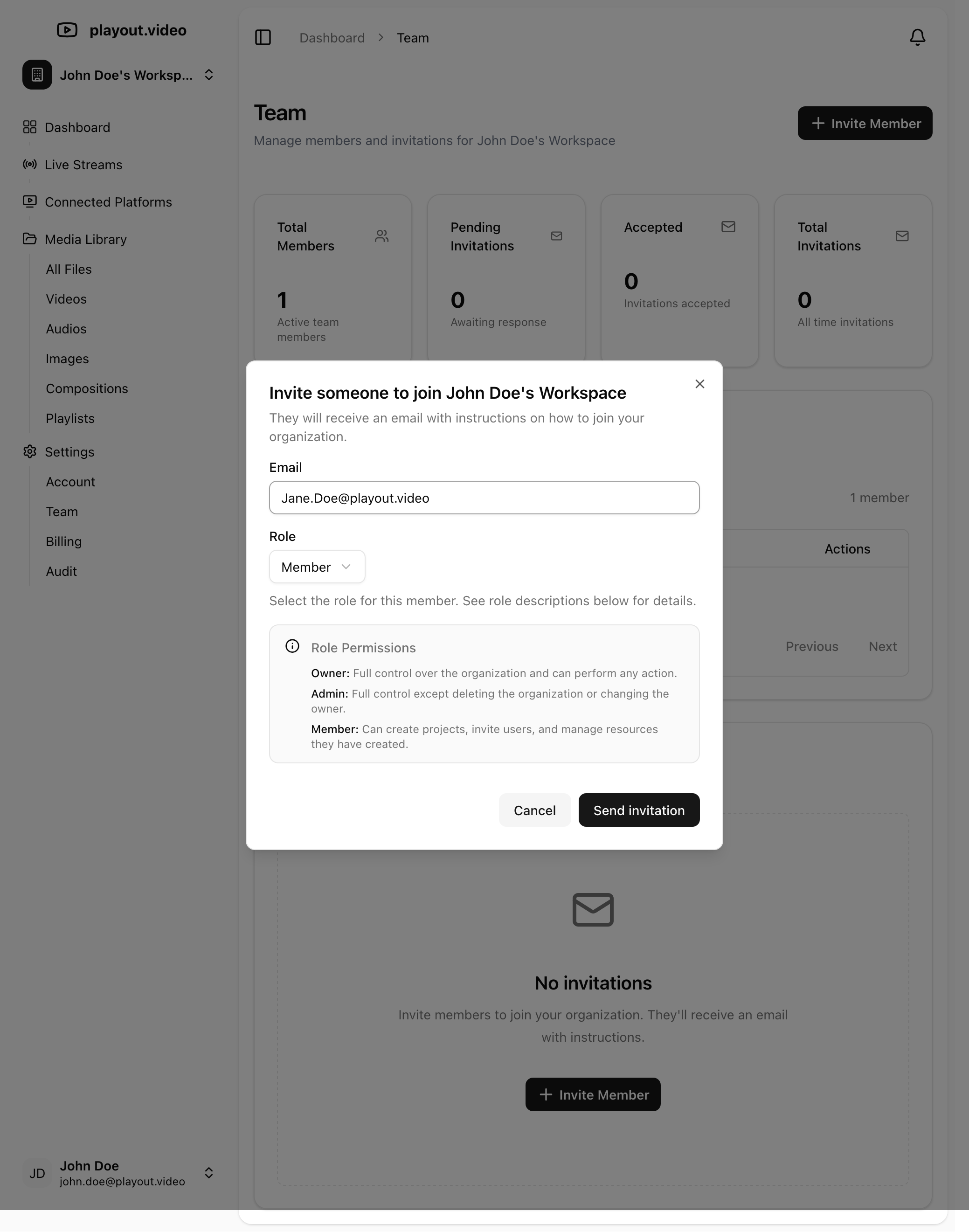
Step 2: Send an Invitation
Click Invite Member
Enter the person's email address
Select their role (see roles below)
Click Send Invitation
The invited person will receive an email with a link to join your organization. They'll need to create a playout.video account (or sign in if they already have one) to accept the invitation.
Step 3: Manage Pending Invitations
After sending an invitation, you can:
View pending invitations: see who hasn't accepted yet
Resend invitation: send the email again if they didn't receive it
Revoke invitation: cancel the invitation before it's accepted
Roles and Permissions
Owner
The account creator is automatically the Owner. This role has full control:
Manage billing and subscription
Invite and remove team members
Change member roles
Access all streams, media, and settings
Delete the organization
There can only be one Owner per organization.
Admin
Admins have broad access to manage the organization:
Invite and remove team members (except the Owner)
Create and manage all streams
Upload and manage all media
Configure stream settings, destinations, and schedules
Access compositions and overlays
Admins cannot manage billing or delete the organization.
Member
Members have standard access for day-to-day operations:
View and manage streams they have access to
Upload media to the shared library
Create and edit playlists
View compositions and overlays
Cannot invite or remove team members
Cannot access billing settings
Viewer (Read-Only)
Viewers have limited, read-only access:
View streams and their status
Browse the media library
View playlists and schedules
Cannot make changes to streams, media, or settings
This role is useful for stakeholders who need visibility without editing capabilities.
Common Team Setups
Small Creator with an Assistant
Owner (you): full control over everything
Admin (assistant): manages streams, uploads content, and handles day-to-day operations while you focus on creating content
Media Company
Owner (company lead): billing and high-level management
Admin (content manager): oversees all streams and team members
Member (content creators): upload media, build playlists, manage assigned streams
Viewer (executives/stakeholders): monitor stream performance without making changes
Church or Nonprofit
Owner (pastor or tech lead): full control
Admin (media director): manages streams and team
Member (volunteers): upload sermons, manage playlists for specific streams
Viewer (church leadership): view stream status and content
Agency Managing Multiple Clients
Owner (agency lead): billing and account management
Admin (account managers): manage streams for their assigned clients
Member (content team): upload and organize media, build playlists
Managing Existing Members
Changing a Member's Role
Go to Settings > Team
Find the member in the list
Click on their role to open the role selector
Choose the new role
Changes take effect immediately
Removing a Member
Go to Settings > Team
Find the member you want to remove
Click Remove or the remove icon
Confirm the removal
Removed members immediately lose access to the organization. Their personal playout.video account remains active, but they can no longer see your organization's streams, media, or settings.
Accepting an Invitation
If you've been invited to join an organization:
Check your email for the invitation
Click the Accept Invitation link
Sign in to your playout.video account (or create one)
You'll be added to the organization with the assigned role
If you're already a member of another organization, you may need to switch between organizations in your account settings.
Security Best Practices
Use Appropriate Roles
Assign the minimum role needed for each person's responsibilities:
Don't make everyone an Admin if they only need Member access
Use the Viewer role for people who just need to monitor
Reserve Owner and Admin roles for trusted team members
Review Access Regularly
Periodically review your team members:
Remove people who no longer need access
Downgrade roles if responsibilities have changed
Check for any pending invitations that should be revoked
Protect the Owner Account
The Owner account has the most power, including billing access:
Use a strong, unique password
Enable two-factor authentication if available
Don't share Owner credentials with anyone (invite them as Admin instead)
Troubleshooting
Invitation email not received?
Check the spam/junk folder
Verify the email address is correct
Try resending the invitation
Ask the invitee to check if they already have a playout.video account with a different email
Team member can't access a stream?
Check their role and permissions
Verify they've accepted the invitation and are logged in
Make sure they're viewing the correct organization
Can't change a member's role?
Only Owners and Admins can change roles
You cannot change the Owner's role (ownership must be transferred)
You cannot assign a role higher than your own
Next Steps
Understanding Plans and Pricing: your plan covers all team members
How to Create Your First 24/7 Live Stream: get your team started
Uploading Videos and Managing Your Media Library: shared media library for your team