Connecting Streaming Platforms
Connect YouTube, Twitch, Facebook, TikTok, LinkedIn, and other platforms to playout.video. Stream to one or multiple destinations simultaneously.
Introduction
Destinations are where your live stream is broadcast. playout.video supports 20+ streaming platforms, from YouTube and Twitch to TikTok, Facebook, and any service that accepts RTMP. You can stream to a single platform or broadcast to multiple destinations simultaneously (multistreaming).
This guide covers how to connect platforms, manage destinations, and configure auto-start for hands-free streaming.
Supported Platforms
playout.video supports the following platforms with one-click OAuth connection:
YouTube: the most popular platform for 24/7 streams
Twitch: ideal for gaming and entertainment content
Facebook: stream to pages, groups, or your personal profile
LinkedIn: professional live streaming for businesses
Custom RTMP
For any platform not listed above, you can use Custom RTMP:
Rumble
TikTok
Instagram
Telegram
Steam
Amazon Live
Kick
DLive
Restream.io
Any service that provides an RTMP URL and stream key
Connecting a Platform via OAuth
OAuth-supported platforms (YouTube, Twitch, Facebook, LinkedIn) use a secure authorization flow, so you never need to share your password.
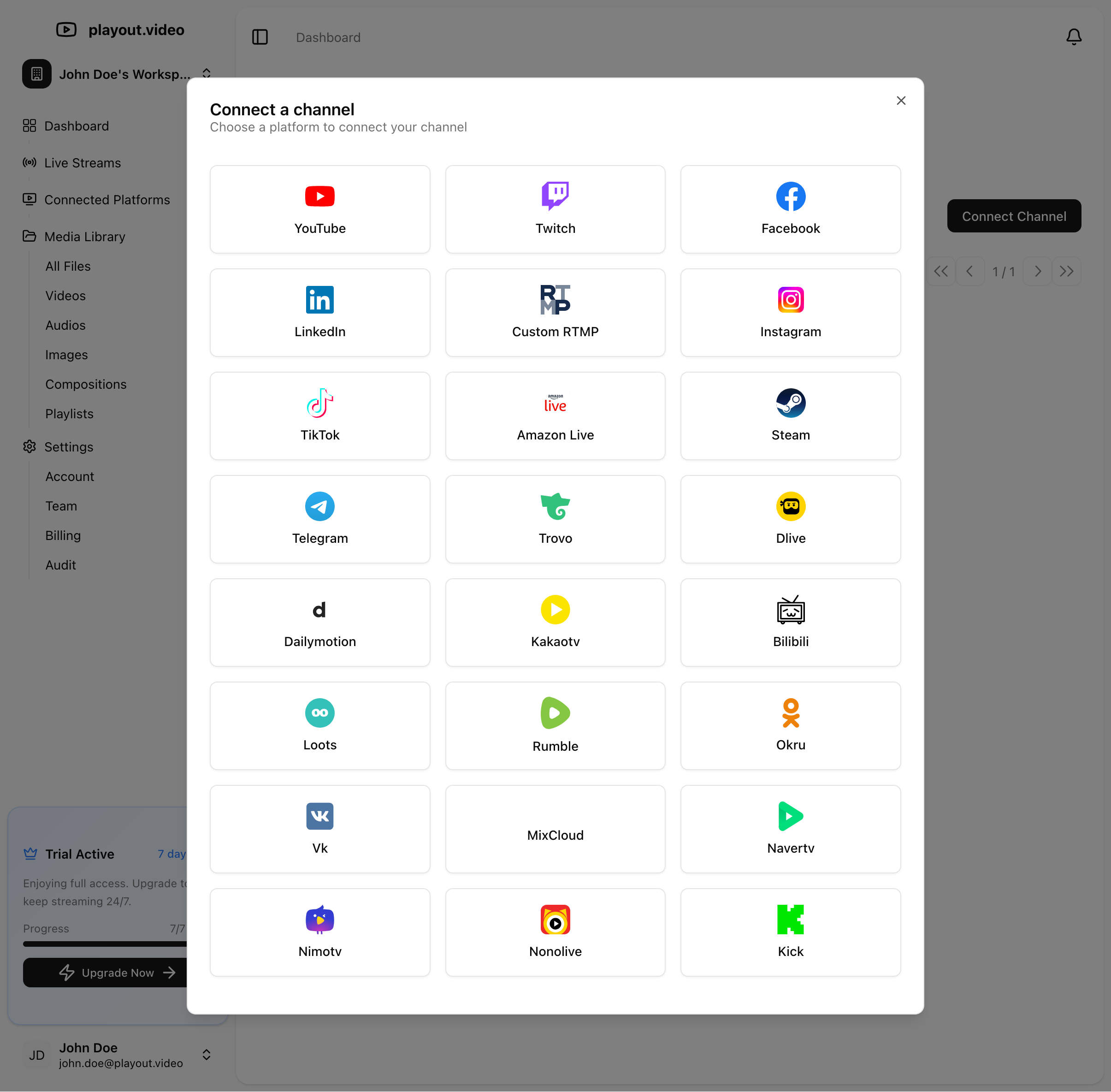
Step 1: Navigate to Channels
Go to Channels from the main sidebar navigation
Click Connect Channel
Select the platform you want to connect
Screenshot suggestion: Channels page showing the list of available platforms to connect.
Step 2: Authorize Access
You'll be redirected to the platform's login page
Sign in to your account (if not already signed in)
Grant playout.video permission to stream on your behalf
You'll be redirected back to playout.video
The connected channel will now appear in your Channels list with its name and profile picture.
Step 3: Add as a Destination
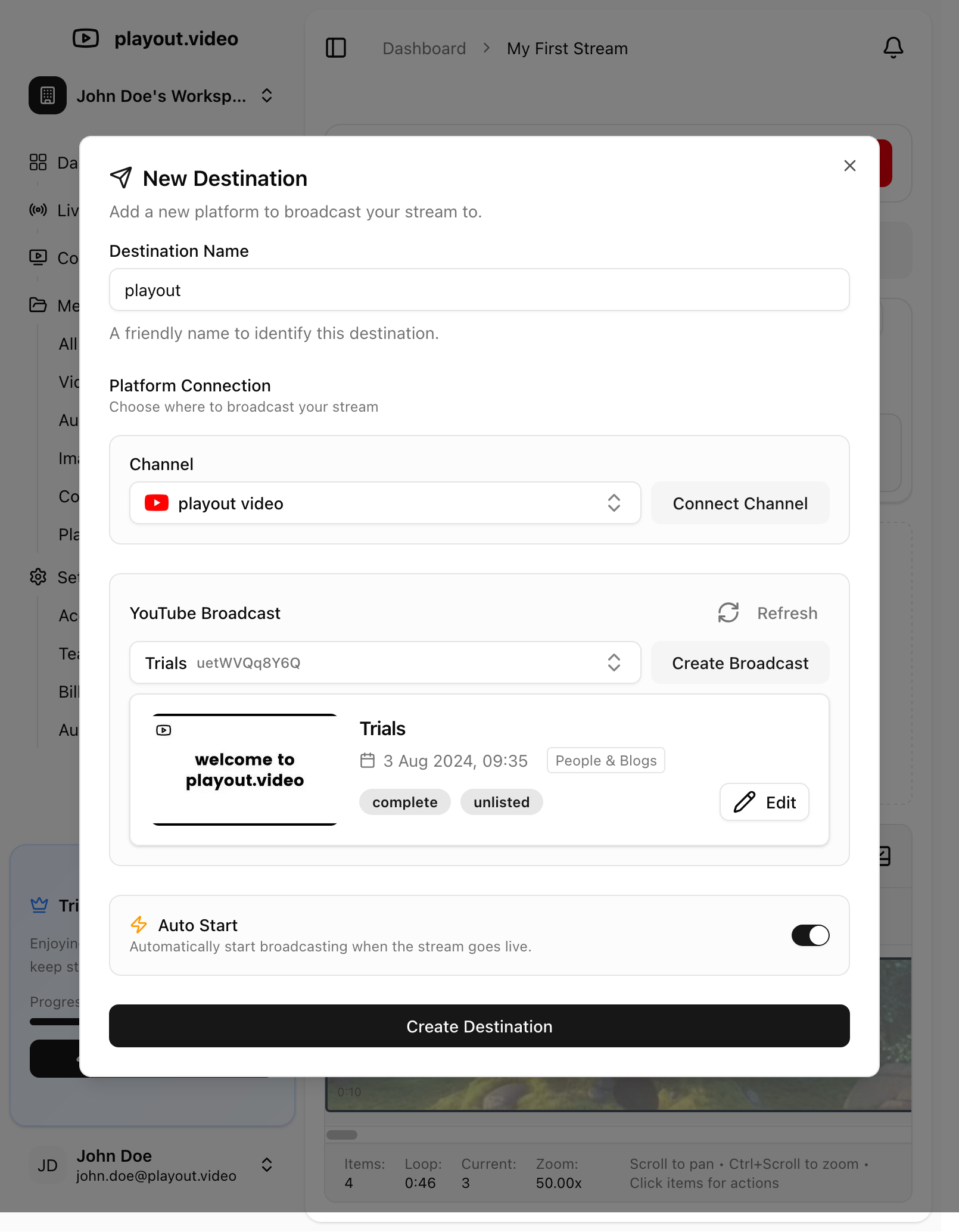
Once a channel is connected, you can add it as a destination to any live stream:
Open your live stream's management page
Click Destinations in the sidebar
Click Add Destination
Select your connected channel from the dropdown
Configure destination-specific settings (title, description, visibility)
Click Create Destination
Connecting via Custom RTMP
For platforms that don't support OAuth, use Custom RTMP:
Step 1: Get Your RTMP Credentials
From your streaming platform (e.g., Rumble, Kick, Telegram):
Navigate to your platform's live streaming settings
Find the RTMP Server URL (sometimes called "Stream URL" or "Ingest URL")
Copy the Stream Key
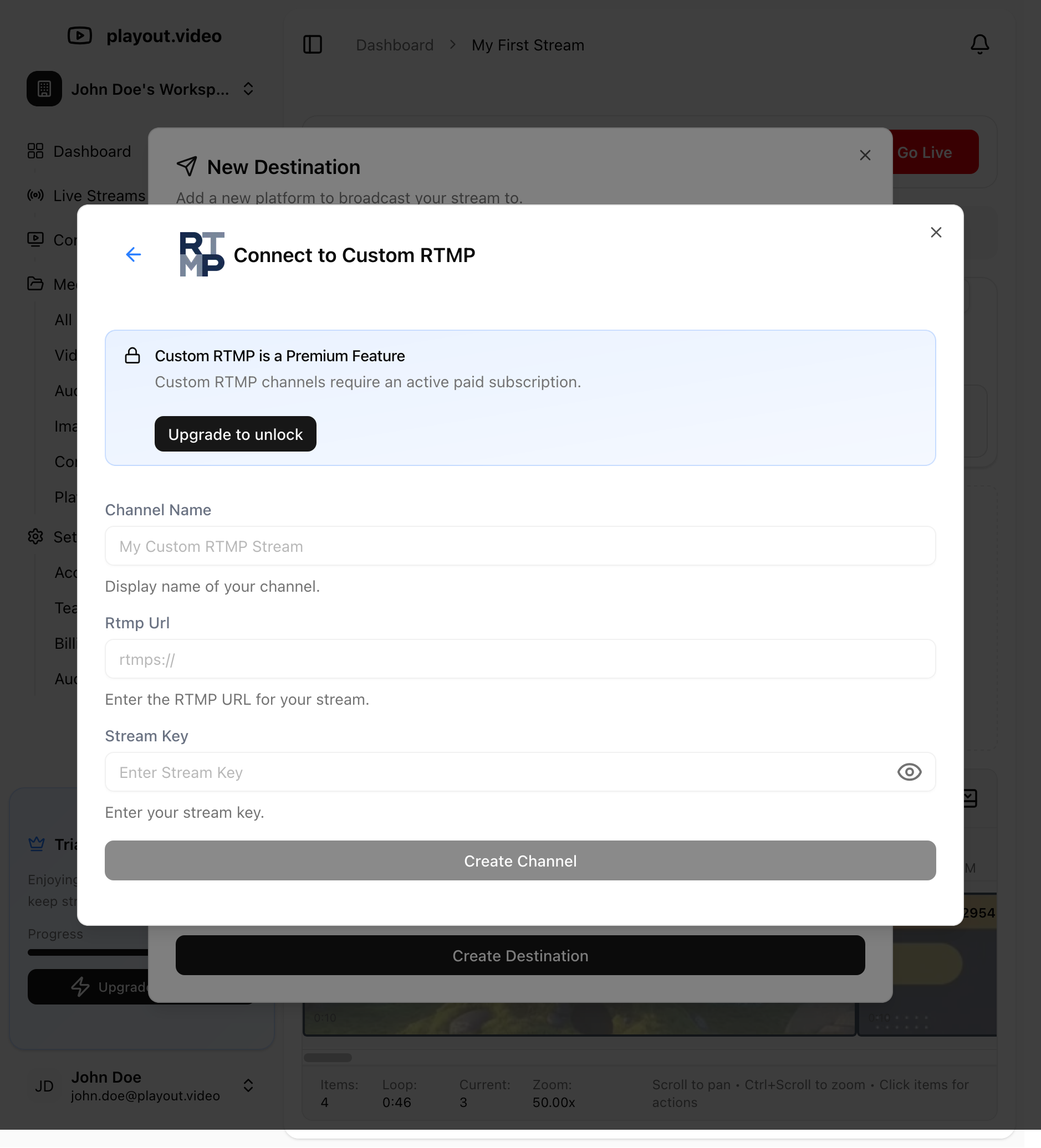
Step 2: Add Custom RTMP Destination
Open your live stream's management page
Click Destinations in the sidebar
Click Add Destination
Select Custom RTMP
Enter the RTMP URL (e.g.,
rtmp://live.example.com/live)Enter the Stream Key
Give it a recognizable name (e.g., "My Rumble Channel")
Click Create Channel
Destination Settings
Each destination has configurable options:
Auto Start
When enabled, the destination automatically starts broadcasting when your stream starts. This is perfect for hands-free operation, just start your stream and all auto-start destinations go live simultaneously.
To enable:
Edit the destination
Toggle Auto Start on
Save
Platform-Specific Settings
Depending on the platform, you may be able to configure:
Stream title: the title shown on the platform
Description: stream description for viewers
Visibility: public, unlisted, or private (YouTube)
Category: content category for discoverability
Multistreaming
Multistreaming means broadcasting to multiple platforms at the same time from a single stream. This maximizes your reach without any extra effort.
How to Set Up Multistreaming
Connect all the platforms you want to stream to (see steps above)
Add each platform as a destination on your live stream
Enable Auto Start on each destination
Start your stream — all destinations go live simultaneously
Example setup:
YouTube (Auto Start: On)
Twitch (Auto Start: On)
TikTok (Auto Start: On)
Facebook Page (Auto Start: On)
When you click "Go Live", your content broadcasts to all four platforms at once.
Managing Individual Destinations
You can start and stop individual destinations independently:
Start a destination while the stream is already running, useful for adding a platform mid-stream
Stop a destination without stopping the entire stream, useful for ending on one platform while continuing on others
Schedule destination start/stop, automate when specific platforms go live (see Scheduling Streams and Automated Actions)
Managing Connected Channels
Viewing Connected Channels
Navigate to Channels to see all your connected platforms:
Channel name and profile picture
Platform type (YouTube, Twitch, etc.)
Connection status (active, expired, error)
Reconnecting a Channel
If a channel's authorization expires:
Go to Channels
Find the channel with an expired status
Click Reconnect
Complete the OAuth flow again
Removing a Channel
To disconnect a platform:
Go to Channels
Find the channel you want to remove
Click Remove or Disconnect
Removing a channel also removes it from any live stream destinations that use it.
Platform-Specific Tips
YouTube
YouTube is the most popular platform for 24/7 streams
Set your stream visibility to Unlisted while testing, then switch to Public when ready
YouTube may take a few minutes to start showing your stream to viewers after going live
Enable DVR in YouTube Studio for viewers to rewind your live stream
Twitch
Twitch streams are always public
Make sure your Twitch account is in good standing to avoid stream interruptions
Consider setting a category and tags in Twitch for discoverability
You can stream to your personal profile, a Page, or a Group
Facebook Pages are recommended for 24/7 streaming as they have better analytics
Facebook may limit stream duration for personal profiles
TikTok
TikTok Live has specific requirements (minimum follower count may apply)
Vertical (9:16) aspect ratio works best for TikTok
Consider using playout.video's aspect ratio settings to optimize for TikTok
Troubleshooting
Destination shows "Error" or "Disconnected"?
The platform authorization may have expired — try reconnecting the channel
Check that your platform account is in good standing
For Custom RTMP, verify the URL and stream key are correct
Stream is live but not showing on the platform?
Some platforms take 30-60 seconds to start displaying the stream
Check the platform's live dashboard to confirm the stream is being received
For YouTube, make sure the stream visibility is set to Public or Unlisted
Can't connect a platform?
Make sure you're signed into the correct account on the platform
Clear your browser cookies for the platform and try again
Some platforms require your account to meet certain criteria (e.g., TikTok follower count)
Multistreaming quality issues?
playout.video handles all encoding in the cloud, so multistreaming doesn't affect quality
Each destination receives the same high-quality stream regardless of how many destinations are active
Next Steps
Multistreaming to Multiple Platforms at Once — advanced multistreaming guide
Custom RTMP Destinations — detailed RTMP setup
Scheduling Streams and Automated Actions — automate destination start/stop
How to Stream to YouTube, Twitch, and TikTok Simultaneously — step-by-step multistreaming tutorial