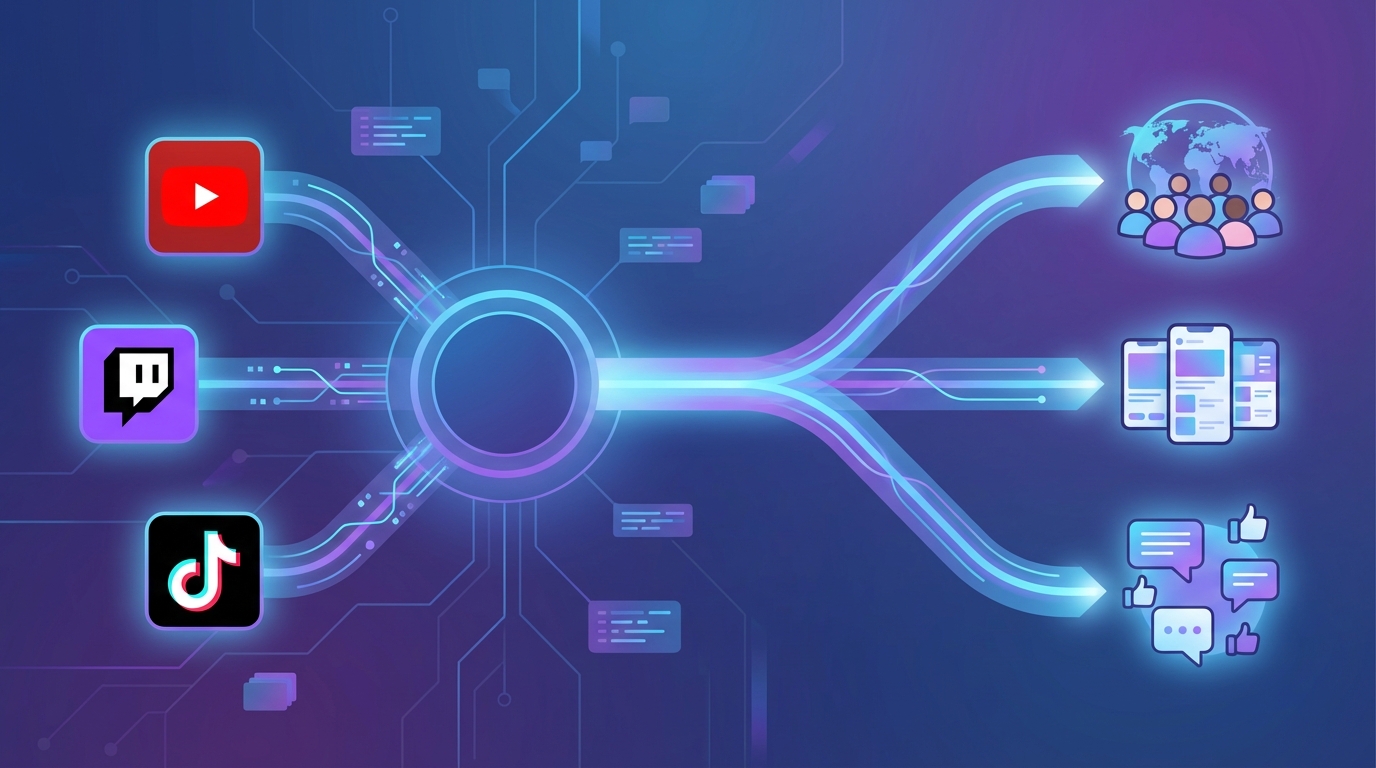
How to Stream to YouTube, Twitch, and TikTok Simultaneously
A step-by-step guide to multistreaming your content to YouTube, Twitch, and TikTok at the same time using playout.video. Reach 3x the audience with zero extra effort.
Why Stream to YouTube, Twitch, and TikTok at the Same Time?
Each platform has a unique audience with different viewing habits:
YouTube has 2+ billion monthly users and is the top platform for 24/7 live streams. It's where viewers go for long-form content, music streams, and always-on channels
Twitch is the home of live entertainment, with a highly engaged community that loves interactive content and real-time chat
TikTok has over 1 billion monthly users, primarily on mobile, with a younger demographic that discovers content through the For You feed
By streaming to all three simultaneously, you're putting your content in front of three completely different audiences without creating three separate streams. One stream, three platforms, maximum reach.
What You'll Need
A playout.video account (the Free plan requires no credit card)
A YouTube channel
A Twitch account
A TikTok account with live streaming enabled
At least one video in your media library
Step 1: Connect Your Platform Accounts
First, connect all three platforms to playout.video:
Connect YouTube
Go to Channels from the main navigation
Click Connect Channel
Select YouTube
Sign in to your Google account and authorize playout.video
Your YouTube channel appears in the connected channels list
Connect Twitch
Click Connect Channel again
Select Twitch
Sign in to your Twitch account and authorize
Your Twitch channel is now connected
Connect TikTok
Click Connect Channel one more time
Select TikTok
Sign in to your TikTok account and authorize
Your TikTok account is now connected
Screenshot suggestion: Channels page showing YouTube, Twitch, and TikTok all connected with green status indicators.
Step 2: Create Your Live Stream
Go to the Dashboard and click Create Live Stream
Name your stream (e.g., "My Multistream Channel")
Select your quality settings (1080p 30fps is a great starting point)
Click Create
Step 3: Build Your Playlist
Click Playlist in the sidebar
Click Add Videos and select content from your media library
Arrange the videos in your preferred order
The playlist will loop automatically
If you don't have videos yet, you can upload from your computer or import from a link.
Step 4: Add All Three Destinations
Now add YouTube, Twitch, and TikTok as destinations:
Add YouTube Destination
Click Destinations in the sidebar
Click Add Destination
Select your connected YouTube channel
Configure the stream title and description for YouTube
Set visibility to Public (or Unlisted for testing)
Enable Auto Start
Save
Add Twitch Destination
Click Add Destination again
Select your connected Twitch channel
Enable Auto Start
Save
Add TikTok Destination
Click Add Destination one more time
Select your connected TikTok account
Enable Auto Start
Save
Screenshot suggestion: Destinations panel showing YouTube, Twitch, and TikTok all added with Auto Start enabled.
Step 5: Go Live on All Three Platforms
Click Start Stream. That's it.
All three destinations will start broadcasting simultaneously. You'll see each destination's status change to "Live" in the Destinations panel.
Your stream is now running on YouTube, Twitch, and TikTok at the same time, all from a single source, all encoded and distributed in the cloud.
Optimizing for Each Platform
Content Considerations
Each platform has different content expectations:
YouTube: works well with all content types. Longer videos, music, educational content, and compilations all perform well
Twitch: viewers expect engagement. Consider content that's entertaining to watch in real-time
TikTok: short, attention-grabbing content works best. Fast cuts and visual variety keep mobile viewers engaged
Aspect Ratio
Here's where it gets interesting. YouTube and Twitch prefer 16:9 landscape, while TikTok performs best with 9:16 vertical content.
Option 1: Use 16:9 for all three. YouTube and Twitch will look perfect. TikTok will show your stream with black bars on top and bottom, which is acceptable but not optimal.
Option 2: Run two separate streams. Create one stream in 16:9 for YouTube and Twitch, and another in 9:16 for TikTok. This requires more content but gives the best experience on each platform.
Option 3: Use 1:1 square. A compromise that looks decent on all platforms, though not optimal for any.
For most creators starting out, Option 1 is the simplest and still effective.
Overlays
Use the Composition Editor to add overlays that work across all platforms:
Logo: place in a corner that won't be cropped on any platform
Now Playing: useful for music channels on all platforms
Text overlays: keep them within the center-safe area so they're visible on both landscape and vertical viewers
Advanced: Scheduling Platform-Specific Hours
Not every platform needs to run 24/7. You can schedule when specific destinations are active:
Example setup:
YouTube: 24/7 (always on via Auto Start)
Twitch: 24/7 (always on via Auto Start)
TikTok: 6 PM to 11 PM daily (scheduled start/stop)
To set this up:
Go to Schedule in the sidebar
Create a recurring schedule: Start TikTok Destination at
0 18 * * *(6 PM daily)Create another recurring schedule: Stop TikTok Destination at
0 23 * * *(11 PM daily)
This targets TikTok's peak hours while keeping YouTube and Twitch running around the clock.
Monitoring Your Multistream
Once your stream is running on all three platforms, monitor performance:
In playout.video
Check the Destinations panel for real-time status of each platform
View the stream health indicators for any issues
Auto-recovery handles reconnections if any platform drops
On Each Platform
YouTube Studio: check live analytics for concurrent viewers, chat activity, and watch time
Twitch Dashboard: monitor viewer count, chat, and stream health
TikTok Live Center: see viewer count and engagement metrics
YouTube Analytics in playout.video
playout.video includes a built-in YouTube Analytics panel in your stream's sidebar, giving you quick access to your YouTube live broadcast metrics without leaving the dashboard.
Common Questions
Does multistreaming affect quality?
No. playout.video encodes your stream once in the cloud and distributes it to all destinations at the same quality. Adding more destinations doesn't reduce quality.
Does it cost more to stream to more platforms?
There are no per-destination fees. Plans include a destination allowance (2 on Free, 5 on Creator, 8 on Channel, 10 on Business), and within it the price is the same whether you stream to one platform or all of them.
Can I add more platforms later?
Absolutely. You can add Facebook, Instagram, LinkedIn, Rumble, Kick, or any Custom RTMP destination at any time, even while the stream is already running.
What if one platform goes down?
Auto-recovery handles individual platform issues. If YouTube has a brief outage, your Twitch and TikTok streams continue unaffected. When YouTube comes back, auto-recovery reconnects automatically.
Do I need to manage chat on all three platforms?
Chat management is handled on each platform individually. playout.video focuses on the video broadcast. You can use each platform's native tools or a third-party chat aggregator to manage chat across platforms.
Start Multistreaming Today
Multistreaming to YouTube, Twitch, and TikTok is one of the most effective ways to grow your audience across platforms. With playout.video, the entire setup takes less than 10 minutes, and once it's running, it's completely hands-free.
Create your free account and reach 3x the audience with a single stream.
Related articles: