Importing Videos from YouTube
Import your existing YouTube videos into playout.video with one click. Build your media library instantly without re-uploading files.
Introduction
If you already have videos on YouTube, you don't need to download and re-upload them. playout.video's YouTube Import feature lets you bring any YouTube video into your media library with just a URL, ready to use in your 24/7 live streams.
This is the fastest way to build your content library, especially if you're repurposing existing YouTube content for continuous streaming.
How YouTube Import Works
The import process is simple:
You paste a YouTube video URL
playout.video downloads the video in the best available quality
The video is processed and added to your media library
You can immediately add it to any playlist
The entire process happens in the cloud, with nothing downloaded to your computer.
Step-by-Step Guide
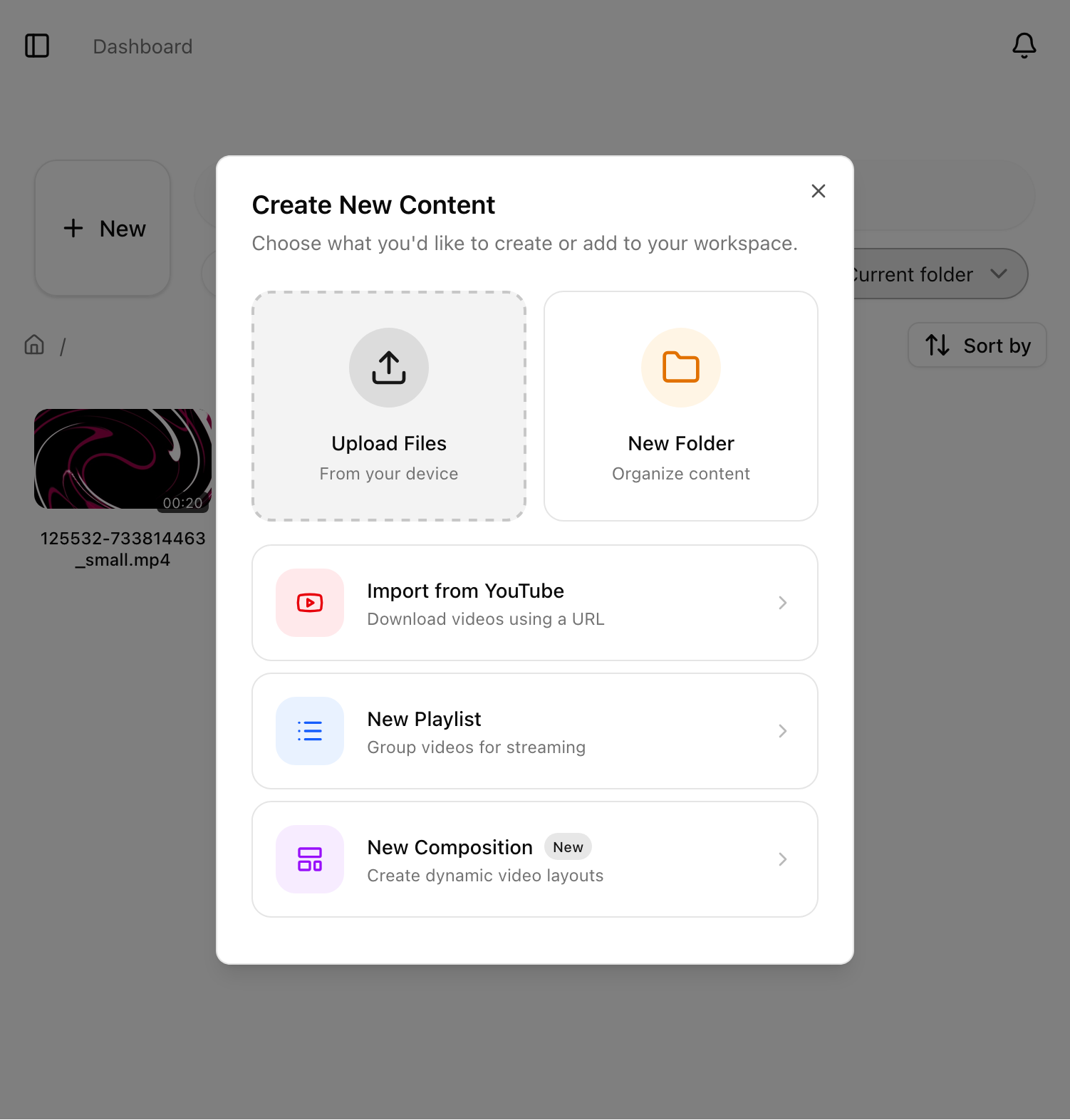
Step 1: Open the Import Dialog
There are two ways to access the YouTube import:
From the Dashboard: Click the Import YouTube button in the media library section
From the Media Library: Navigate to your files and click the Import YouTube button
Step 2: Paste the YouTube URL
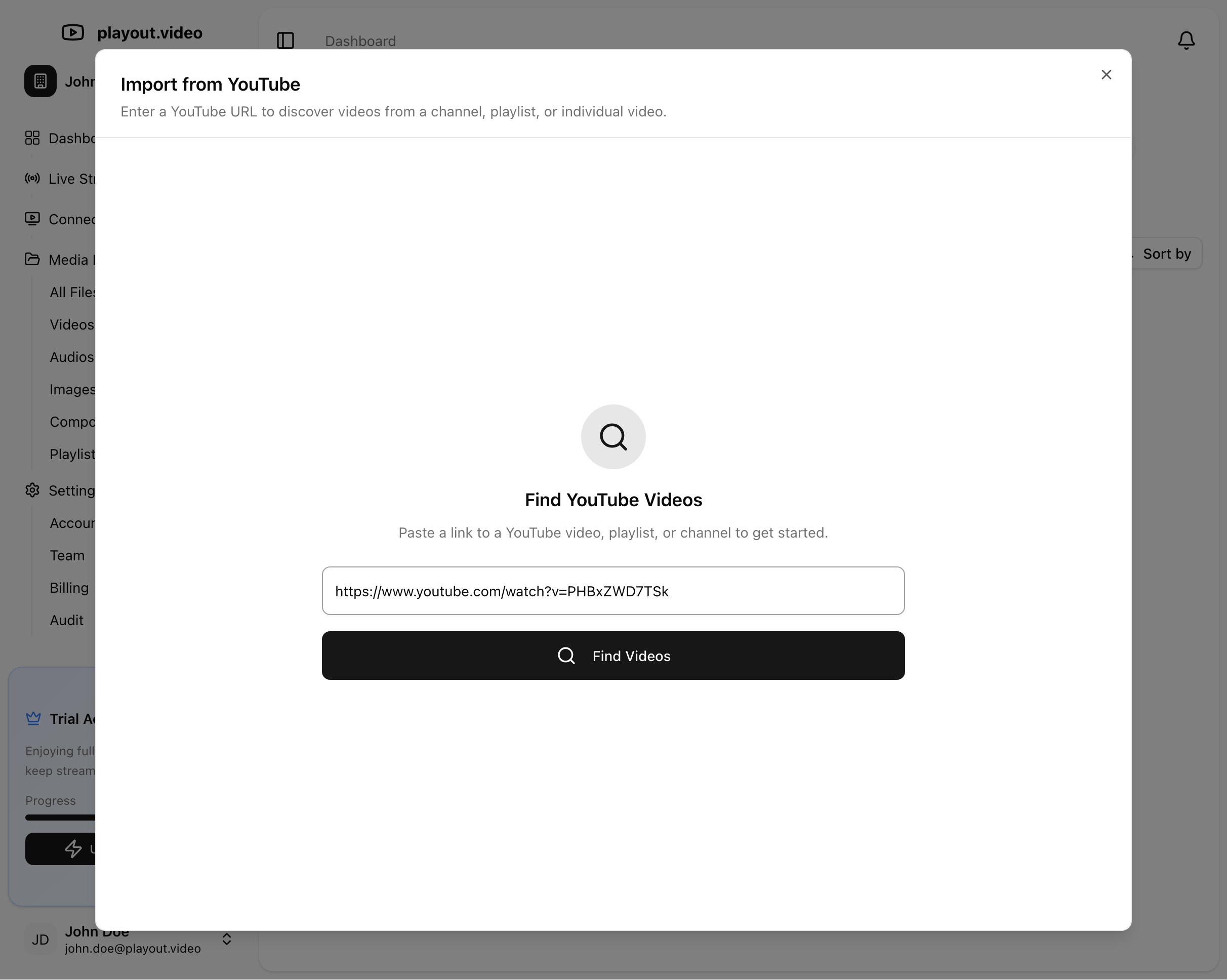
In the import dialog:
Copy the URL of the YouTube video you want to import
Paste it into the URL field
Click Import
Supported URL formats:
https://www.youtube.com/watch?v=VIDEO_IDhttps://youtu.be/VIDEO_IDhttps://www.youtube.com/shorts/VIDEO_ID
Step 3: Wait for Processing
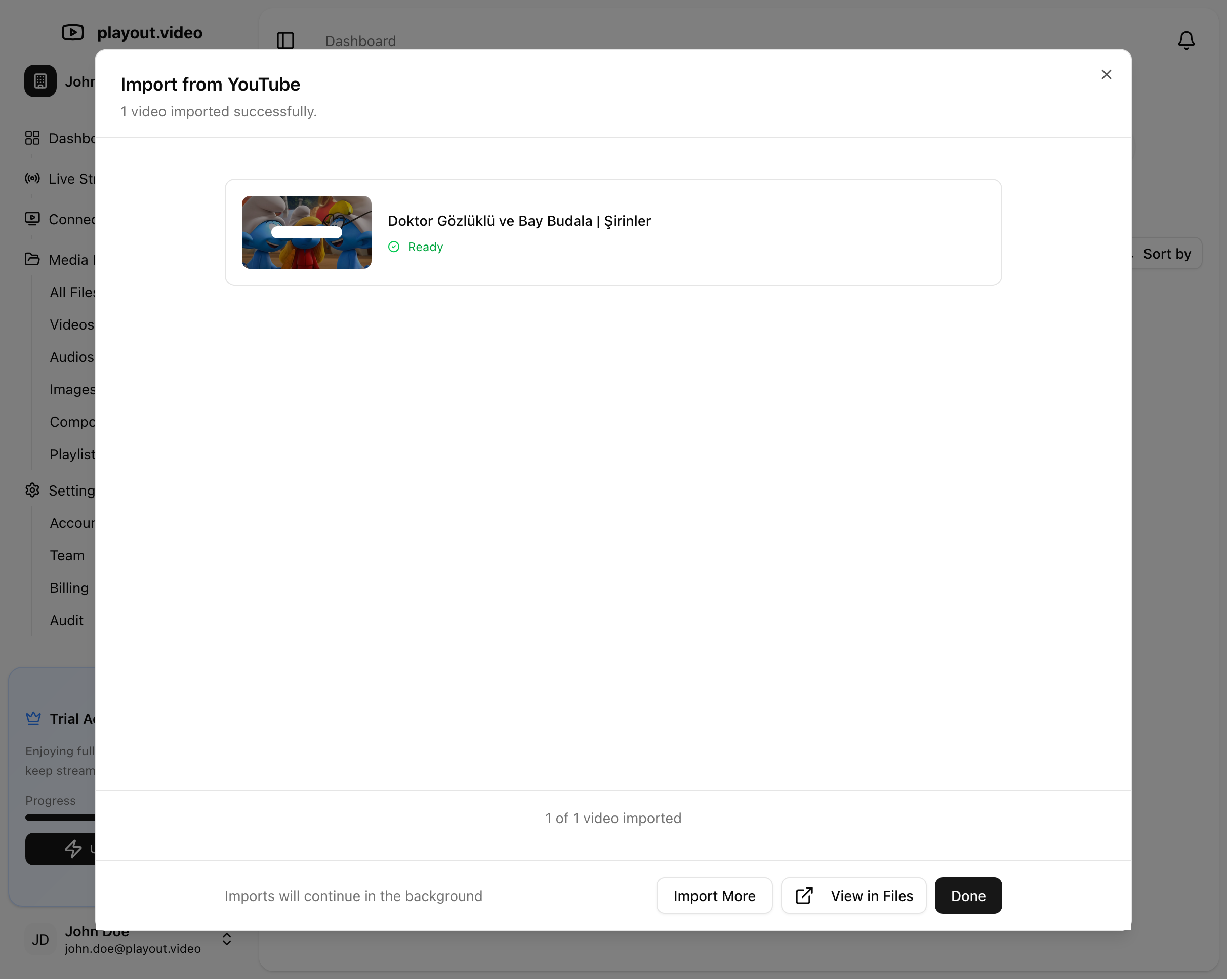
After clicking Import:
playout.video fetches the video from YouTube
The video is transcoded and optimized for streaming
A thumbnail is automatically generated
The video appears in your media library with its original title
Processing time depends on the video length and resolution. Most videos under 10 minutes are ready within a few minutes.
Step 4: Use in Your Streams
Once imported, the video works exactly like any uploaded file:
Add it to playlists for 24/7 streaming
Use it in compositions with overlays
Preview it in the media player
Importing Multiple Videos
You can import multiple YouTube videos one after another. Each import runs independently, so you can queue up several imports and they'll process in parallel.
Tip: If you have a large YouTube library, import your most popular or evergreen content first. You can always add more later.
Video Quality
playout.video imports YouTube videos at the highest available quality. The imported video quality depends on what was originally uploaded to YouTube:
If the original was uploaded in 1080p, you'll get 1080p
If the original was uploaded in 4K, you'll get 4K
Your stream output quality is then determined by your subscription plan settings (HD, 4K, 30fps, or 60fps).
Important Notes
Your own content only: Only import videos that you own or have permission to use. Importing copyrighted content from other creators violates YouTube's terms of service.
Public and unlisted videos: You can import public and unlisted YouTube videos. Private videos cannot be imported.
Processing time: Longer videos take more time to process. A 1-hour video may take 5-10 minutes to be fully ready.
Storage: Imported videos count toward your cloud storage quota (100GB included with all plans, expandable in 100GB increments).
Troubleshooting
Import fails or gets stuck?
Double-check the YouTube URL is correct and the video is publicly accessible
Some videos may have geographic restrictions that prevent import
Age-restricted videos may require additional verification
Video quality is lower than expected?
The imported quality matches what's available on YouTube. If the original was uploaded in 720p, the import will be 720p
YouTube may not have finished processing all quality levels for very new videos
Video title or thumbnail is wrong?
You can edit the file details in your media library after import
Thumbnails are auto-generated from the video content
Next Steps
Uploading Videos and Managing Your Media Library — upload videos directly from your computer
Building and Managing Playlists — add imported videos to your stream playlist
How to Create Your First 24/7 Live Stream — complete setup guide