Uploading Videos and Managing Your Media Library
Upload videos, organize files into folders, and manage your entire media library in playout.video. Supports MP4, MOV, MKV, AVI, WebM, audio, and images.
Introduction
Your media library is the foundation of everything you stream on playout.video. It's where all your videos, audio files, and images live: organized, processed, and ready to be added to playlists and compositions.
This guide covers everything you need to know about uploading content, organizing your files, and managing your library efficiently.
Supported File Formats
playout.video supports a wide range of media formats:
Video
MP4: the most common and recommended format
MOV: Apple QuickTime format
MKV: Matroska video container
AVI: Audio Video Interleave
WebM: open web media format
Audio
MP3: standard audio format
WAV: uncompressed audio
AAC: Advanced Audio Coding
OGG: open-source audio format
Images
PNG: lossless images, great for logos and overlays
JPG/JPEG: compressed images
WebP: modern web image format
SVG: vector graphics for logos
Uploading Files
From the Dashboard
Navigate to your Dashboard
Scroll to the Media Library section
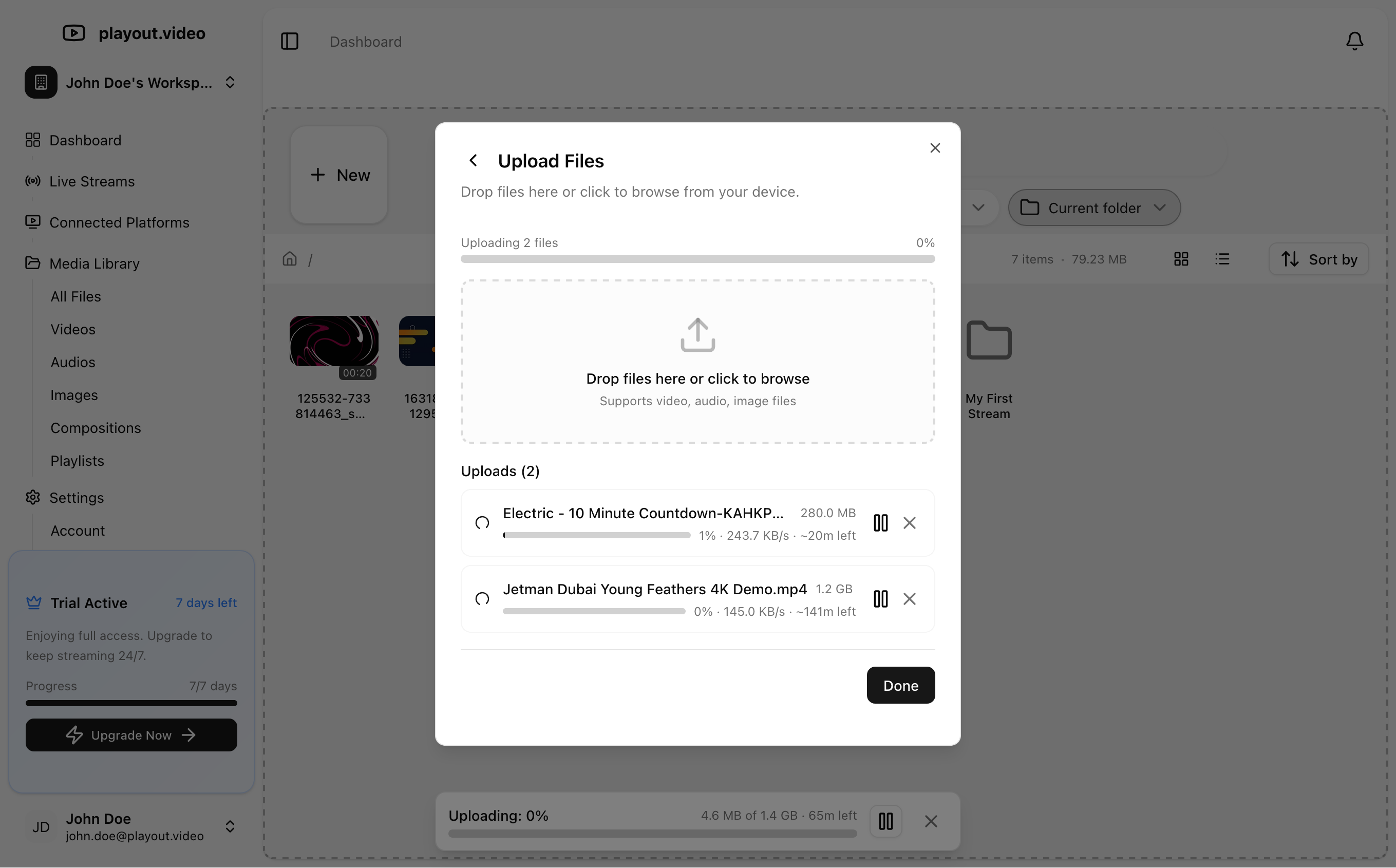
Click the Upload button
Select one or more files from your computer
Wait for upload and processing to complete
From the Media Library Page
Navigate to Media Library from the sidebar
Click Upload in the top-right corner
You can also drag and drop files directly onto the page
Upload Tips
Batch uploads: Select multiple files at once to upload them all simultaneously
Large files: There's no strict file size limit, but larger files take longer to upload and process. A stable internet connection is recommended for files over 1GB
Best quality: Upload your source files at the highest quality available. playout.video will handle transcoding for your stream output quality
File Processing
After uploading, each file goes through automatic processing:
Upload: the file is transferred to cloud storage
Transcoding: the video is optimized for streaming playback
Thumbnail generation: a preview image is created automatically
Ready: the file is available for use in playlists and compositions
Processing time varies based on file size and duration:
A 5-minute 1080p video: ~1-2 minutes
A 30-minute 1080p video: ~5-8 minutes
A 1-hour 4K video: ~15-20 minutes
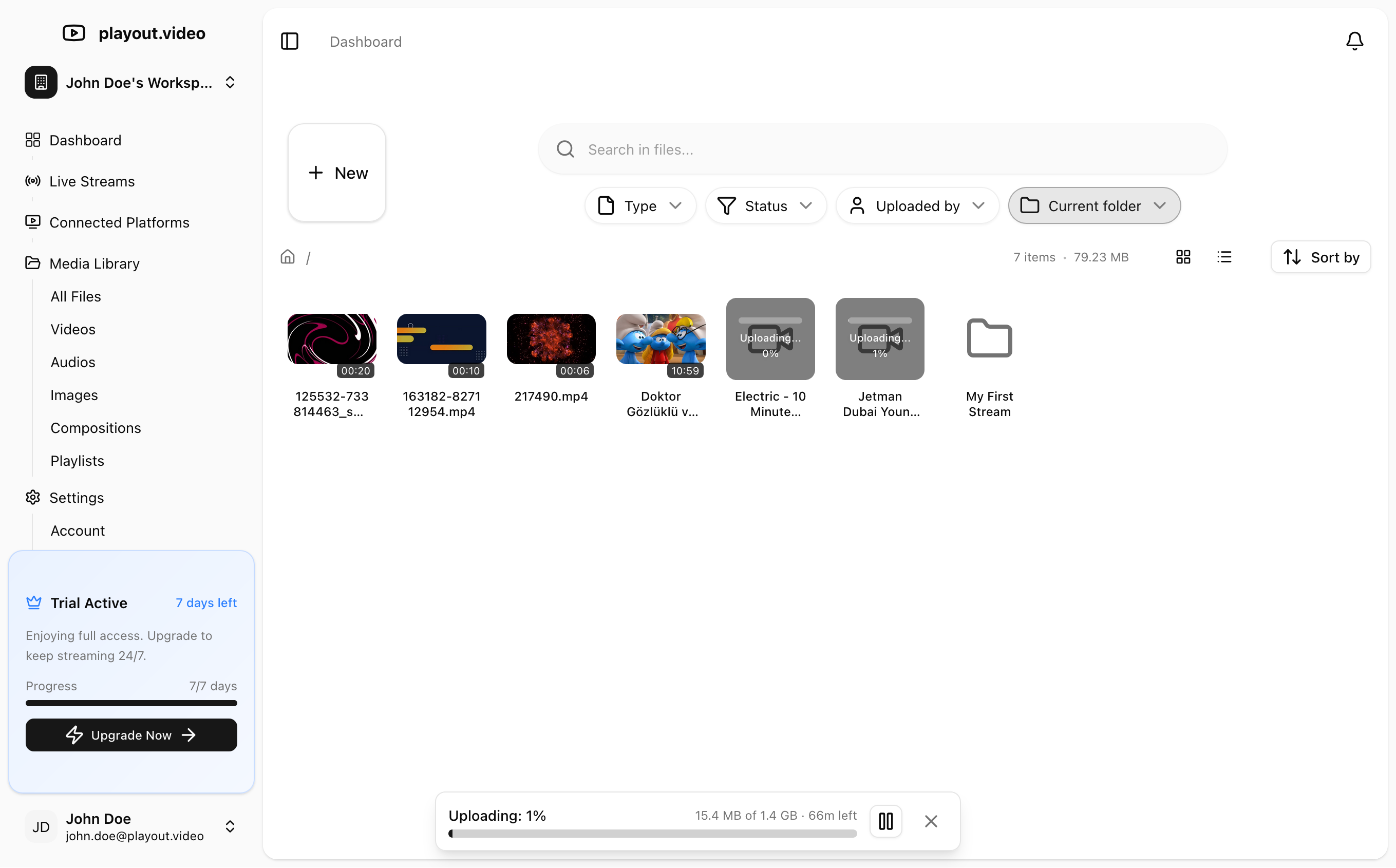
You can continue using playout.video while files process in the background. You'll see a processing indicator on files that aren't ready yet.
Organizing Your Library
Grid and List Views
The media library offers two viewing modes:
Grid view: visual thumbnails, great for browsing
List view: compact table with file details (name, size, duration, date)
Folders
Keep your library organized with folders:
Click New Folder to create a folder
Give it a descriptive name (e.g., "Music Videos", "Intros", "Backgrounds")
Drag files into folders or move them using the context menu
Folder ideas for common setups:
Intros & Outros: bumper videos for your streamMain Content: your primary streaming videosBackground Music: audio tracks for compositionsOverlays: logos, watermarks, and overlay imagesJingles: short clips that play between videos
Search and Filter
Finding files is easy:
Search by file name using the search bar
Filter by file type (video, audio, image)
Sort by name, date added, size, or duration
File Details
Click on any file to view its details:
Name: editable file name
Duration: for video and audio files
Resolution: video dimensions (e.g., 1920x1080)
File size: storage space used
Format: file container and codec information
Date added: when the file was uploaded or imported
Thumbnail: auto-generated preview (for videos)
Storage Management
Every playout.video plan includes 100GB of cloud storage. Here's how to manage it effectively:
Check Your Usage
Your current storage usage is visible in your account settings. You can see:
Total storage allocated
Storage currently used
Remaining space
Free Up Space
If you're running low on storage:
Delete files you no longer need
Remove duplicates: check for accidentally uploaded copies
Optimize source files: compress large source files before uploading if you don't need the original quality
Expand Storage
Need more space? You can add storage in 100GB increments:
Monthly: $25 per 100GB
Annual: $250 per 100GB (save ~17%)
Storage add-ons are managed in your billing settings.
Importing from YouTube
In addition to direct uploads, you can import videos from YouTube with a single URL. This is covered in detail in Importing Videos from YouTube.
Using Files in Your Streams
Once files are in your library and processed, you can:
Add to playlists: select files when building a playlist for any live stream
Use in compositions: add videos, images, and audio as overlay elements
Set as background music: use audio files as continuous background tracks
Troubleshooting
Upload fails or gets stuck?
Check your internet connection — large files need a stable connection
Try uploading smaller batches if you're uploading many files at once
Refresh the page and try again — the upload will resume if partially completed
File shows "Processing" for a long time?
Large files (especially 4K or long-duration) can take 15-20 minutes
If processing seems stuck after 30 minutes, try deleting and re-uploading the file
Video plays with no audio?
Make sure the source file contains an audio track
Some screen recordings may not include audio by default
Thumbnail is black or incorrect?
Thumbnails are generated from the first few seconds of the video
If your video starts with a black screen, the thumbnail may appear black
This doesn't affect streaming quality
Next Steps
Importing Videos from YouTube — import existing YouTube content
Building and Managing Playlists — use your uploaded files in playlists
How to Create Your First 24/7 Live Stream — complete setup guide