
Building and Managing Playlists
Build smart playlists for your 24/7 live stream. Learn how to add videos, reorder content, enable loop and shuffle, add jingles, and switch playlists without interruption.
Introduction
Playlists are the heart of your 24/7 live stream. They determine what content plays, in what order, and how it repeats. playout.video gives you full control over your playlist with drag-and-drop reordering, automatic looping, jingles, and seamless playlist switching, all without interrupting your live stream.
This guide covers everything you need to know about building and managing playlists.
Creating Your First Playlist
Every live stream has a playlist. Here's how to set it up:
Open your live stream's management page
Click Playlist in the sidebar
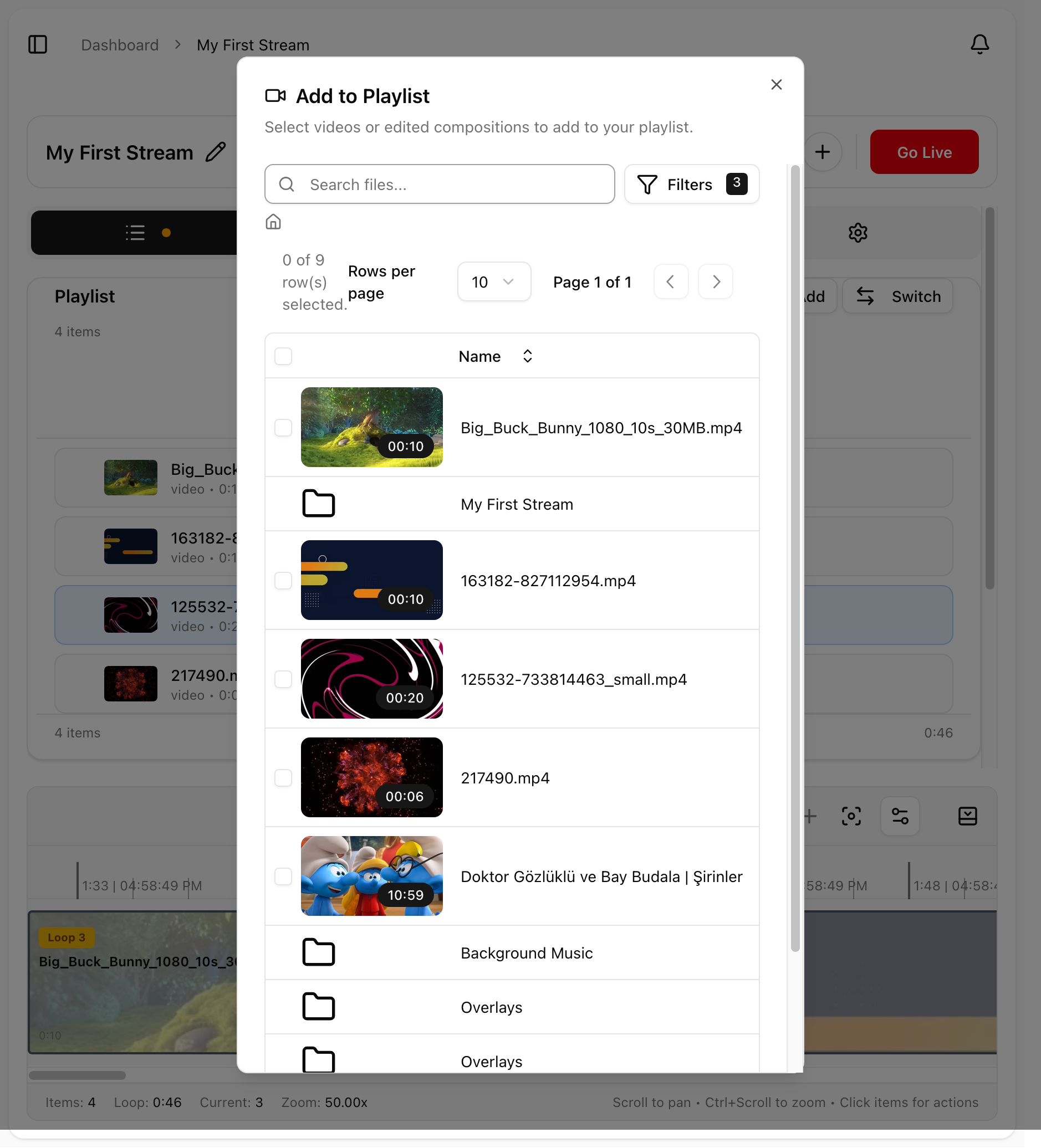
Click Add Videos
Browse your media library and select the videos you want
Click Add to Playlist
Your selected videos will appear in the playlist panel, ready to stream.
Managing Playlist Content
Adding Videos
You can add videos to your playlist at any time, even while the stream is live:
Click Add Videos in the playlist panel
Select one or more files from your media library
New videos are added to the end of the playlist
Tip: You can add the same video multiple times if you want it to appear more than once in the rotation.
Reordering Videos
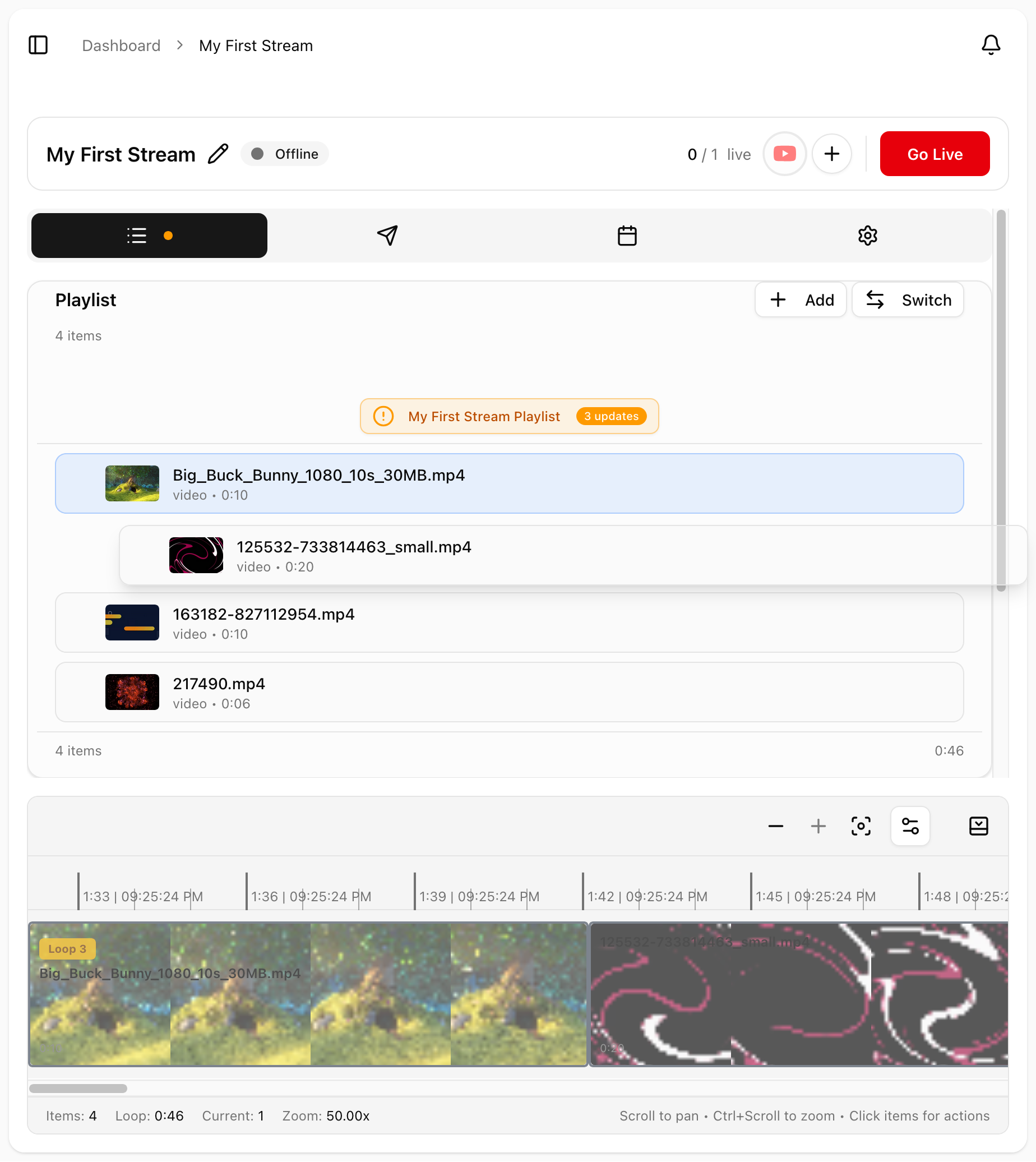
Drag and drop to arrange your playlist:
Hover over a video in the playlist to see the drag handle (the grip icon on the left)
Click and drag the video to its new position
Release to drop it in place
The order you set is the order videos will play. The stream follows the playlist from top to bottom.
Removing Videos
To remove a video from the playlist:
Hover over the video in the playlist
Click the remove button (trash icon)
The video is removed from the playlist but stays in your media library
Removing a video from the playlist does not delete it from your library.
Playback Modes
Loop Mode
Loop is always enabled for 24/7 streaming. When the playlist reaches the last video, it automatically starts again from the first video. This is what makes 24/7 streaming possible: your content plays continuously without manual intervention.
For 24/7 streams, your content will loop continuously to ensure an always-on experience.
Inline Mode
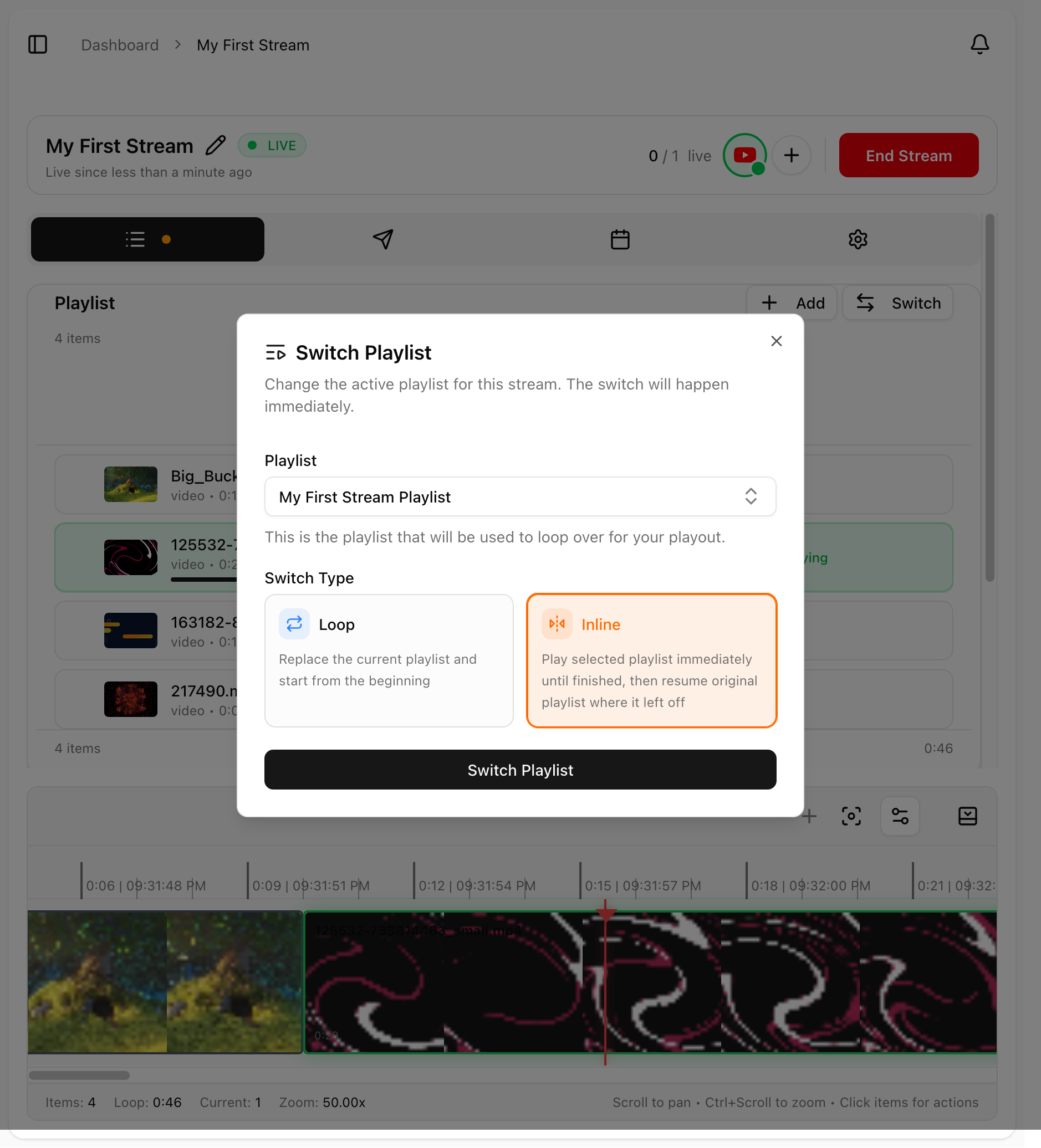
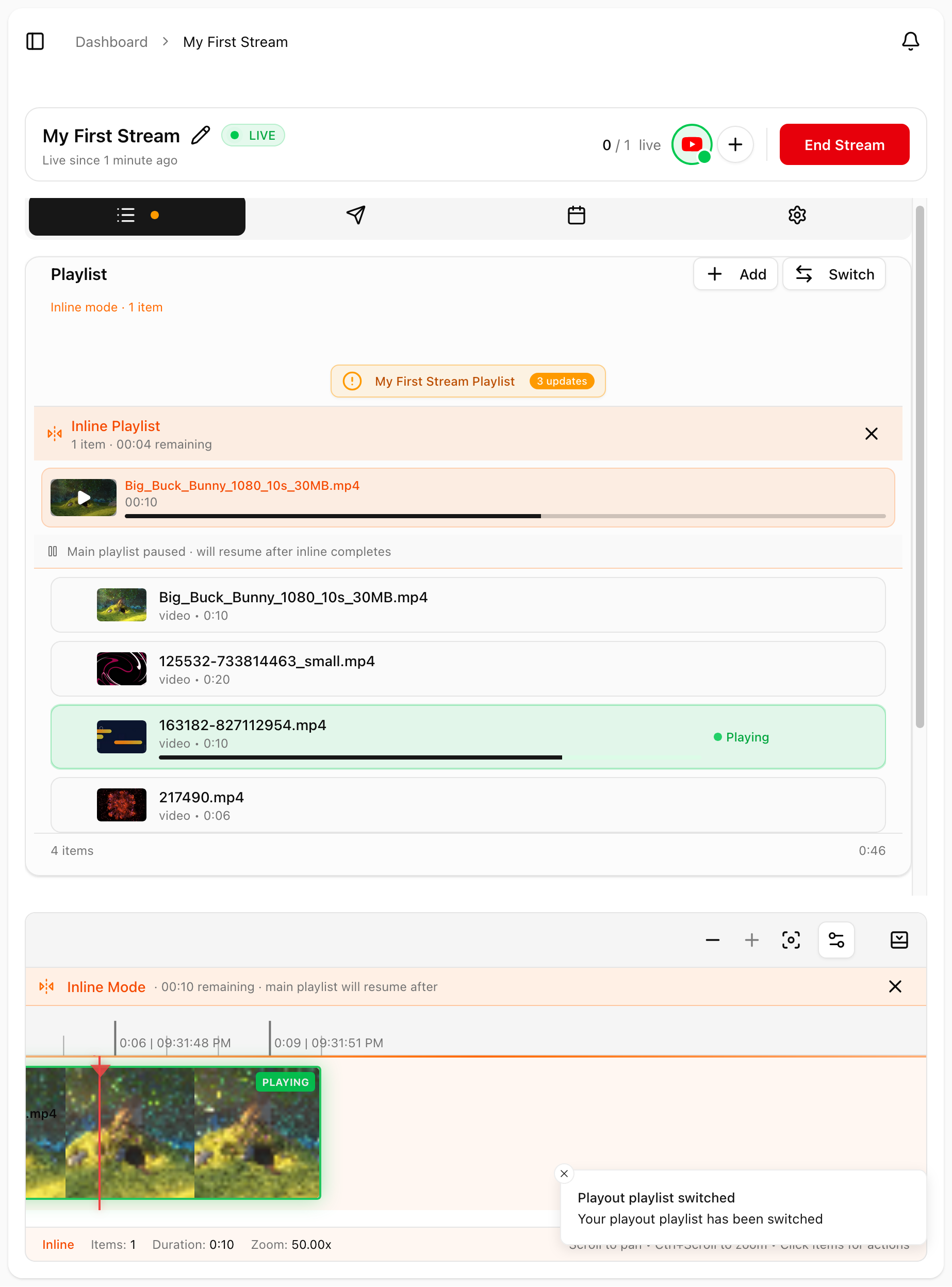
Inline mode lets you temporarily play a different playlist and then automatically return to your main playlist. This is perfect for:
Special events: Play event-specific content without disrupting your regular schedule
Scheduled breaks: Insert different content during specific time periods
Testing: Try out new content without affecting your main playlist
When inline mode completes, your main playlist resumes exactly where it left off.
Jingles
Jingles are short video clips that you can add to your playlist for professional transitions between content. They're perfect for:
Channel branding: show your logo or intro animation between videos
Transitions: smooth visual transitions between different content
Announcements: display a "Subscribe" reminder or upcoming schedule
Ad breaks: insert sponsor messages between content
Using Jingles
Since jingles work like regular playlist items, simply add them to your playlist where you want them to appear:
Upload your jingle video to the media library (keep it short — 5-15 seconds works best)
Add the jingle video to your playlist at the desired position
The jingle will play as part of your regular playlist sequence
Jingle Tips
Keep jingles short (5-15 seconds) to avoid disrupting the viewing experience
Use jingles for branding: a consistent intro builds channel recognition
You can add multiple jingles throughout your playlist for variety
Position jingles strategically between longer content segments
Audio Overlays
Add background music or ambient audio that plays over your video content:
Background music: continuous audio track that plays alongside your videos
Ambient sounds: nature sounds, white noise, or atmospheric audio
Audio branding: subtle audio watermark for your channel
Audio overlays are configured in the composition editor. See Using the Overlay and Composition Editor for details.
Playlist Switching
One of playout.video's most powerful features is inline playlist switching, changing what's playing without stopping or interrupting the live stream.
Manual Switching
While your stream is running, go to the Playlist panel
Make changes to the playlist (add, remove, or reorder videos)
Changes take effect on the next video transition
Scheduled Inline Playlists
You can schedule inline playlists for specific times:
Go to Schedule in the sidebar
Create a new scheduled action
Select Switch Playlist as the action type
Choose the playlist to switch to
Set the switch type to Inline
Set the time (one-time or recurring)
Example use cases:
Morning/Evening rotation: Play different content during specific hours, then return to regular programming
Event-based: Switch to event-specific content at scheduled times, then resume main playlist
Scheduled breaks: Insert special content during breaks, automatically returning to main content
For more on scheduling, see Scheduling Streams and Automated Actions.
Best Practices
For 24/7 Streams
Minimum 3-5 videos: having too few videos makes the loop repetitive
Vary content length: mix short and long videos to keep things interesting
Use inline mode for special content without disrupting your main playlist
Use jingles for professional transitions between videos
For Music/Lo-Fi Channels
Long playlists (50+ tracks) work best for music channels
Use inline mode for special episodes or holiday content
Add audio visualizer overlay for visual interest (see composition editor)
Use "Now Playing" overlay to show the current track name
For Kids Channels
Curate carefully: only include age-appropriate content
Group by theme: create themed playlists (e.g., "Learning Colors", "Nursery Rhymes")
Use colorful jingles: fun transitions keep young viewers engaged
Keep videos short (3-10 minutes), matches kids' attention spans
Use inline mode for special episodes or holiday content
For Educational Content
Organize by topic: group related lessons together
Sequential order: keep loop on for continuous learning
Use inline mode for special lessons or guest lectures
Add intro jingles: brief "Welcome to [Course Name]" clips between lessons
Troubleshooting
Videos play in the wrong order?
Check the playlist order — videos play from top to bottom
If inline mode is enabled, the order is determined by the inline playlist. Disable inline mode to return to main playlist
Playlist changes don't take effect?
Changes apply on the next video transition, not immediately mid-video
If the current video is long, wait for it to finish or skip to the next video
Stream stops after the last video?
Check that your playlist has at least one video
The playlist should loop automatically for 24/7 streaming
Jingle doesn't play at the right time?
Make sure the jingle video has finished processing in your media library
Check that the jingle is positioned correctly in your playlist order
Verify the jingle appears in the playlist where you expect it to play
Next Steps
How to Create Your First 24/7 Live Stream — complete setup guide
Using the Overlay and Composition Editor — add visual overlays to your stream
Scheduling Streams and Automated Actions — automate playlist switching
Inline Playlist Switching — advanced switching without interruption