Create a Lo-Fi Music Live Stream in 5 Minutes
Set up a professional lo-fi music live stream with an audio visualizer, now-playing display, and looping playlist. No hardware, no OBS, just vibes.
The Lo-Fi Streaming Phenomenon
Lo-fi music streams are some of the most popular live content on YouTube. Channels like "Lofi Girl" have millions of subscribers and tens of thousands of concurrent viewers at any given time. The appeal is simple: relaxing background music that plays continuously, perfect for studying, working, or unwinding.
The good news? You don't need a massive production team or expensive equipment to create your own lo-fi music stream. With playout.video, you can have a professional-looking music stream running in about 5 minutes.
What You'll Need
A playout.video account (free plan, no credit card required)
Music tracks: your own lo-fi beats, royalty-free music, or licensed tracks
A background image or video: a cozy animation, cityscape, nature scene, or artwork
A YouTube channel (or any other streaming platform)
Important note on music rights: Only use music you own, have licensed, or that is explicitly royalty-free. Using copyrighted music without permission will result in copyright strikes on your channel.
Step 1: Prepare Your Content (2 minutes)
Background Visuals
Your lo-fi stream needs something visual for viewers to look at. Options:
Static image: a cozy illustration, anime-style scene, or photograph. Simple and effective
Looping video: a short animated loop (rain on a window, a flickering candle, a cat sitting at a desk). More engaging than a static image
Slideshow: multiple images that rotate, giving visual variety
You'll upload these directly in the Create Live Stream wizard.
Music Tracks
Gather your music tracks. For a good lo-fi stream:
Minimum 50+ tracks for variety (2-4 hours of unique music before looping)
Consistent vibe: all tracks should fit the lo-fi aesthetic
Clean transitions: tracks that fade in/out smoothly work best
If you're just starting, even 10-20 tracks will work. You can always add more later.
Step 2: Create Your Stream and Add Content (1 minute)
Click Create Live Stream on the dashboard
You'll see "What would you like to stream?", click Add Content
Upload or select your background image/video and music tracks from the library
Click Continue, since you're mixing audio files with a visual, the Composition Editor opens automatically
Step 3: Build Your Composition (1 minute)
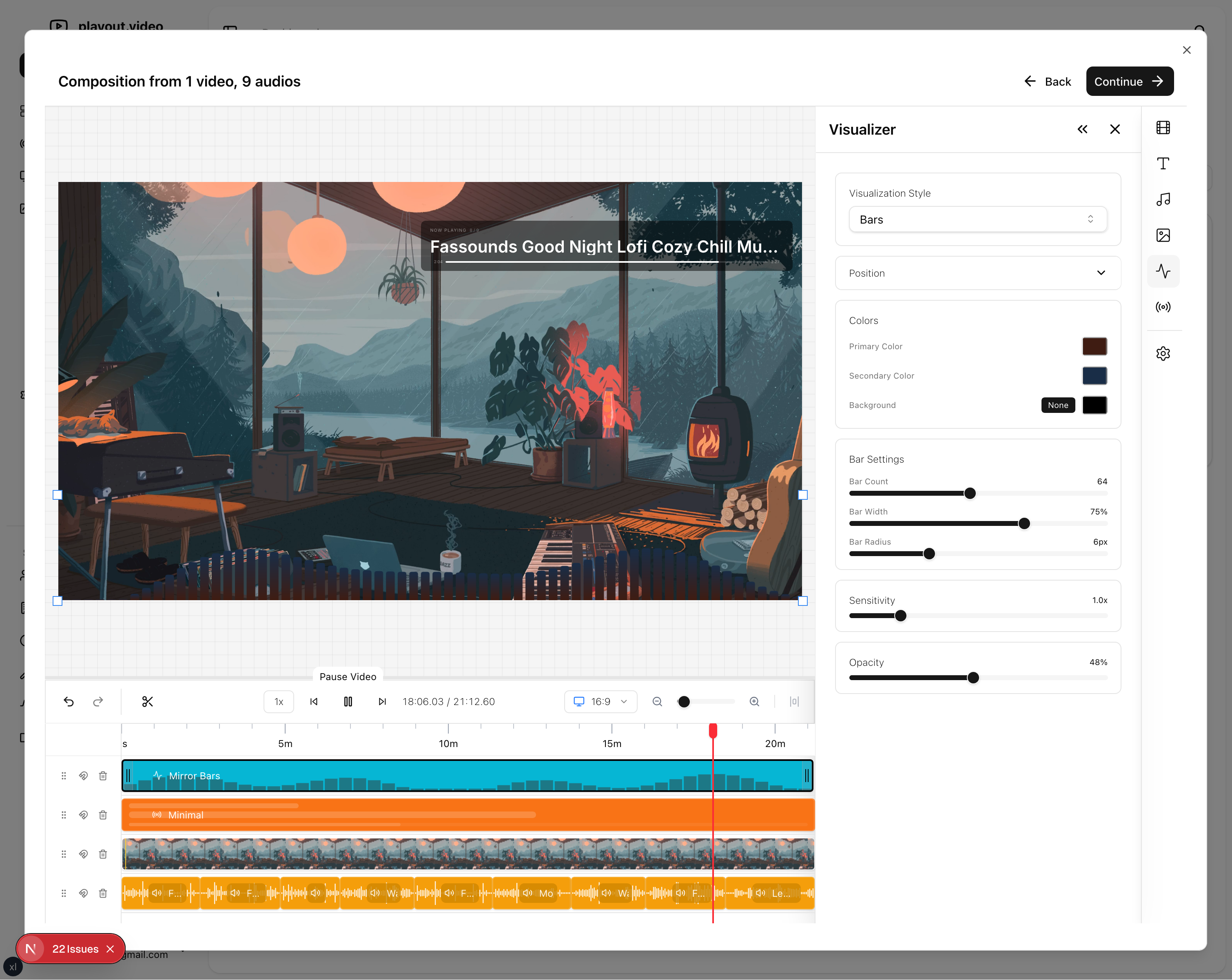
The Composition Editor lets you arrange your audio and visual layers:
Your background image or video appears as the base layer
Your music tracks appear as an audio layer
Arrange and preview the layout in real-time
Add the Lo-Fi Overlays
This is where your stream goes from basic to professional:
Audio Visualizer, the signature element of any music stream:
Add an audio visualizer overlay
Choose a style (bars, waveform, or circular)
Set colors to match your aesthetic (soft purples, blues, and pinks are classic lo-fi colors)
Position it where it complements your background image
Now Playing Display, let viewers know what track is playing:
Add a now-playing overlay
Style it with a clean, readable font
Position it at the bottom of the screen
Choose colors that are visible against your background
Channel Logo (optional):
Add your channel logo as an image overlay (PNG with transparency works best)
Place it in a corner at reduced opacity for a subtle watermark
Text Overlay (optional):
Add a tagline like "lo-fi beats to study/relax to" or your social media handles
Click Continue when you're happy with the layout
Step 4: Configure Settings (30 seconds)
Name your stream (e.g., "Lo-Fi Beats to Study/Relax To")
Add an optional description
Set quality to 1080p 30fps (included on every plan, and ideal for music streams)
Click Continue
Step 5: Connect Destinations and Go Live (30 seconds)
Select your YouTube channel (or any connected platform) from the destinations list
Click Create Stream
Your lo-fi music stream is now live. Total setup time: about 5 minutes.
Tip: Destinations are optional, you can create the stream first and add destinations later from the stream settings.
Optimizing Your Lo-Fi Stream
YouTube Metadata
Optimize for search and discovery:
Title: "Lo-Fi Hip Hop Radio - Beats to Study/Relax To 24/7" (include keywords viewers search for)
Description: describe the vibe, list featured artists (if applicable), include your social links
Tags: "lo-fi", "lo-fi hip hop", "study music", "chill beats", "relaxing music", "24/7 music"
Thumbnail: create a visually striking thumbnail that captures the lo-fi aesthetic
Growing Your Music Channel
Consistency: keep your stream running 24/7. Viewers come to rely on it being there
Fresh content: add new tracks regularly to keep the playlist fresh
Community: engage with chat (if you're available) or set up a Discord for your listeners
Social media: share clips from your stream on TikTok, Instagram, and Twitter
Collaborations: feature tracks from other lo-fi producers to cross-promote
Multistreaming for Music
Music streams work great on multiple platforms:
YouTube: your primary 24/7 home
Twitch: the "Music" category has a dedicated audience
TikTok: short clips of your stream can go viral
Set up multistreaming to reach listeners on all platforms. See Multistreaming to Multiple Platforms at Once.
Beyond Lo-Fi: Other Music Stream Ideas
The same setup works for any music genre:
Jazz cafe: smooth jazz with a coffee shop background
Classical music: orchestral pieces with elegant visuals
Ambient/nature sounds: rain, ocean waves, forest sounds with nature footage
Synthwave/retrowave: neon-colored visuals with retro electronic music
Acoustic/folk: warm, cozy visuals with acoustic guitar music
Focus/productivity: minimal visuals with concentration-enhancing music
Each genre has its own audience on YouTube, and the setup process is identical.
Monetization for Music Streams
YouTube ads: ads play on live streams, generating revenue from your continuous viewership
Super Chats: viewers can send paid messages during your stream
Channel memberships: offer exclusive playlists or early access to new tracks
Music sales: link to your music on Spotify, Apple Music, or Bandcamp in the description
Merchandise: sell branded merchandise (stickers, posters, apparel)
Common Questions
Do I need to own the music?
Yes. Only stream music you own, have licensed, or that is explicitly royalty-free. Copyright strikes can terminate your channel.
Where can I find royalty-free lo-fi music?
Create your own beats (GarageBand, FL Studio, Ableton)
Commission tracks from lo-fi producers
Use royalty-free music libraries (check the license terms carefully)
Collaborate with artists who want exposure
Can I use a static image instead of video?
Absolutely. Many successful lo-fi streams use a single static image as the background. The audio visualizer and now-playing display provide enough visual movement to keep the stream engaging.
What quality settings should I use?
1080p 30fps is perfect for music streams. The visual component is secondary to the audio, so there's no need for 4K or 60fps. The Creator plan ($19/mo billed annually) covers everything a 24/7 music loop needs.
Start Your Music Stream Today
A lo-fi music stream is one of the easiest and most rewarding types of 24/7 content to create. With playout.video, you can go from zero to live in 5 minutes, and the stream runs itself from there.
Create your free account and create your own music channel today.
Related articles: