Managing Your Team and Permissions
Invite team members to your playout.video organization, assign roles, and manage permissions. Collaborate on streams, playlists, and media with your team.
Introduction
You can invite other people into your playout.video workspace so they can help run your streams without sharing your login. Each person signs in with their own account and works in the same workspace as you.
How Teams Work
Everything in playout.video belongs to a workspace (also called an organization). When you sign up, a workspace is created for you and you are its Owner.
Everyone you invite into a workspace shares the same:
Media library: videos, audio and images
Live streams: playlists, schedules and the calendar
Compositions and overlay templates
Connected platforms: the YouTube, Twitch and other destinations the workspace streams to
Plan and billing: the workspace's subscription covers everyone in it
There is no per-stream or per-folder access. A person in the workspace can see and work on all of its streams and media.
If you belong to more than one workspace, each one has its own members, content and plan. Switch between them from the workspace menu.
Inviting Team Members
Owners and Admins can invite people. Members cannot.
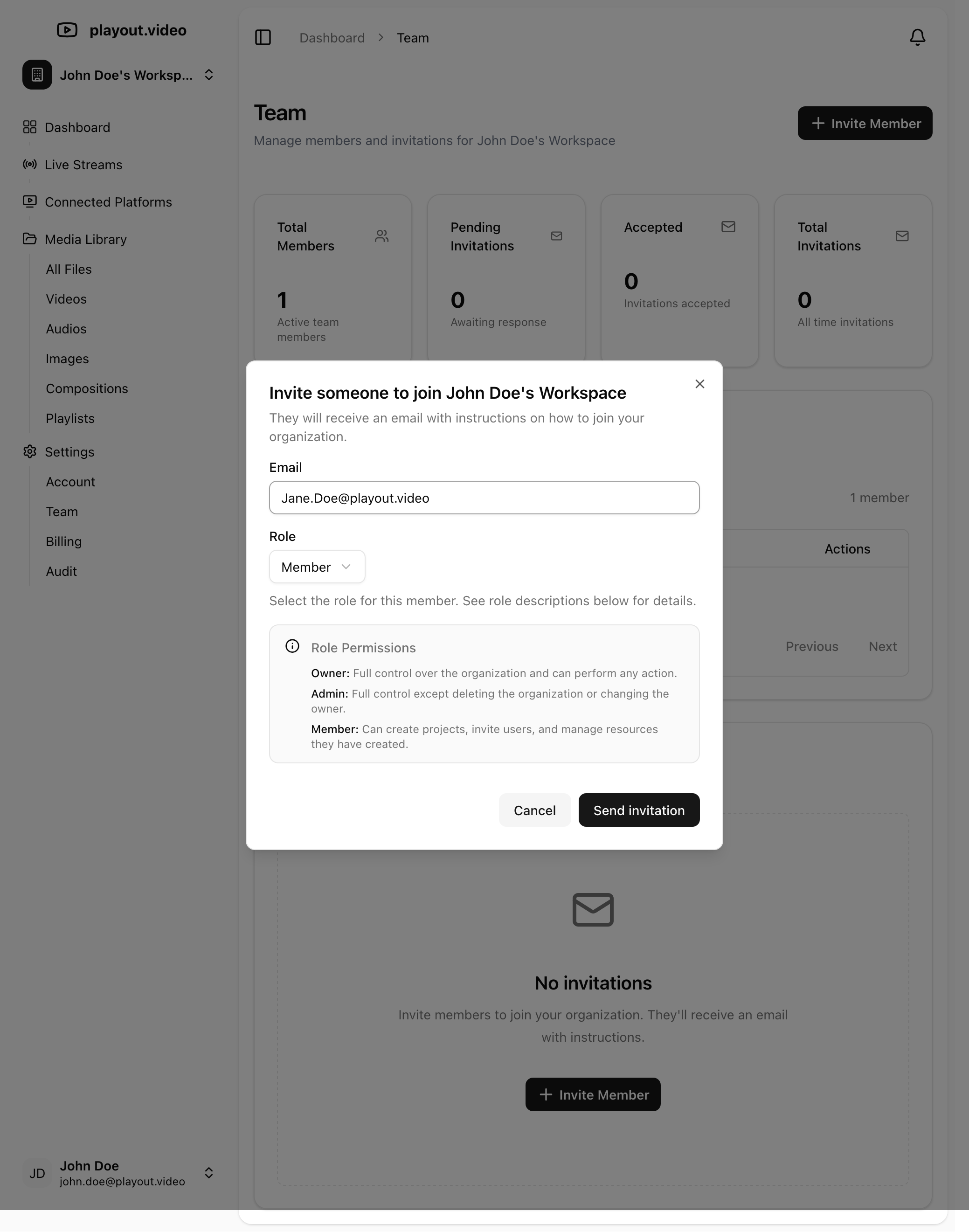
Go to Settings > Team
Click Invite Member
Enter the person's email address
Choose a role: Member, Admin or Owner (only Owners can invite someone as an Owner)
Click Send invitation
The person gets an email with an Accept Invitation link. They sign in to playout.video, or create an account if they don't have one, and join the workspace with the role you picked.
Pending Invitations
Invitations show under Settings > Team until they are accepted.
An invitation expires after 48 hours.
To send it again, invite the same email address again. The new invitation replaces the old one.
Owners and Admins can cancel a pending invitation before it is accepted.
Roles
A workspace has three roles: Owner, Admin and Member.
The roles control who can manage the team, the plan and the workspace itself. For day-to-day work they are the same: everyone in the workspace can create and run streams, upload and delete media, build playlists and schedules, edit compositions and overlays, connect platforms, and see the plan under Settings > Billing and Settings > Usage.
What each role can do
Owner | Admin | Member | |
|---|---|---|---|
Streams, media, playlists, overlays, connected platforms | Yes | Yes | Yes |
See the plan, billing and usage | Yes | Yes | Yes |
Change the plan, payment method or subscription | Yes | No | No |
See the team list | Yes | Yes | Yes |
Invite people and cancel pending invitations | Yes | Yes | No |
Change a Member's or Admin's role | Yes | Yes | No |
Make someone an Owner, or change another Owner's role | Yes | No | No |
Remove people from the workspace | Yes | No | No |
Rename the workspace | Yes | No | No |
See the Audit log | Yes | No | No |
See every support request filed from the workspace | Yes | Yes | Own requests only |
Get storage and inactivity warning emails | Yes | No | No |
Owner
Whoever creates the workspace is its first Owner. A workspace can have more than one Owner: an Owner can invite someone as an Owner, or change an existing member's role to Owner.
Owners are the only people who can:
Change the plan, add or cancel a subscription, or update the payment method (Settings > Billing)
Remove someone from the workspace
Rename the workspace (Settings > Account > Workspace)
Make someone else an Owner, or change or remove another Owner
Open Settings > Audit, which lists the changes people in the workspace have made
Owners also receive the emails about the workspace's storage, such as a warning that it is over its storage allowance or that files are due to be removed after a long period of inactivity.
A workspace always needs at least one Owner. The last Owner cannot leave or be removed.
Admin
Admins help an Owner run the team. An Admin can:
Invite new people as a Member or an Admin
Cancel pending invitations
Change other people's roles between Member and Admin
See every support request filed from the workspace
An Admin cannot change billing, remove people, rename the workspace, see the Audit log, or change anything about an Owner.
Member
Members have full access to the workspace's content and streams but cannot manage the team or change billing. They can see who is in the workspace, but cannot invite people, change roles or cancel invitations. In Help, a Member sees only the support requests they filed themselves.
Managing Existing Members
Changing a role
Go to Settings > Team
Find the person in the list
Open the role menu next to their name and pick the new role
The change takes effect straight away. Owners and Admins can change roles; only an Owner can set or change the Owner role.
Removing someone
Go to Settings > Team
Find the person in the list
Click Remove and confirm
Only Owners see the Remove button. The person loses access to the workspace straight away. Their own playout.video account, and any other workspaces they belong to, are not affected.
There is no "leave workspace" button. If you want to leave a workspace, ask one of its Owners to remove you.
Handing a workspace over
If you are the only Owner and someone else should take over, change their role to Owner first. They can then change your role or remove you.
Do this before you delete your account. Deleting the account of a workspace's only Owner closes that workspace and cancels its subscription. See How to Delete Your Account.
Choosing Roles
Give Member to people who run streams and manage content.
Give Admin to someone who should be able to bring new people in and sort out roles without being able to remove anyone.
Keep Owner for the people responsible for the workspace as a whole. Having a second Owner means the workspace is not stuck if one person leaves.
Only Owners can change billing, so whoever pays for the workspace should be an Owner. When an Admin or Member tries to upgrade, playout.video tells them who the Owners are so they can ask.
Review the team list now and then and remove people who no longer need access.
Troubleshooting
The invitation email didn't arrive
Check the spam or junk folder
Check the email address is spelled correctly
Invite the same address again to send a fresh invitation
If it has been more than 48 hours, the invitation has expired; send a new one
A team member can't see a stream or file
Check they accepted the invitation and appear under Settings > Team
Check they have the right workspace selected in the workspace menu
I can't upgrade or change the plan
Only Owners can change billing. Settings > Billing lists the workspace's Owners; ask one of them, or ask them to make you an Owner
I can't change someone's role or remove them
Members can't change roles; ask an Owner or Admin
Only Owners can remove people, and only Owners can change an Owner's role
The last Owner of a workspace can't be removed or downgraded; make someone else an Owner first
Next Steps
Understanding Plans and Pricing: your plan covers everyone in the workspace
How to Create Your First 24/7 Live Stream: get your team started
Uploading Videos and Managing Your Media Library: the shared media library for your team