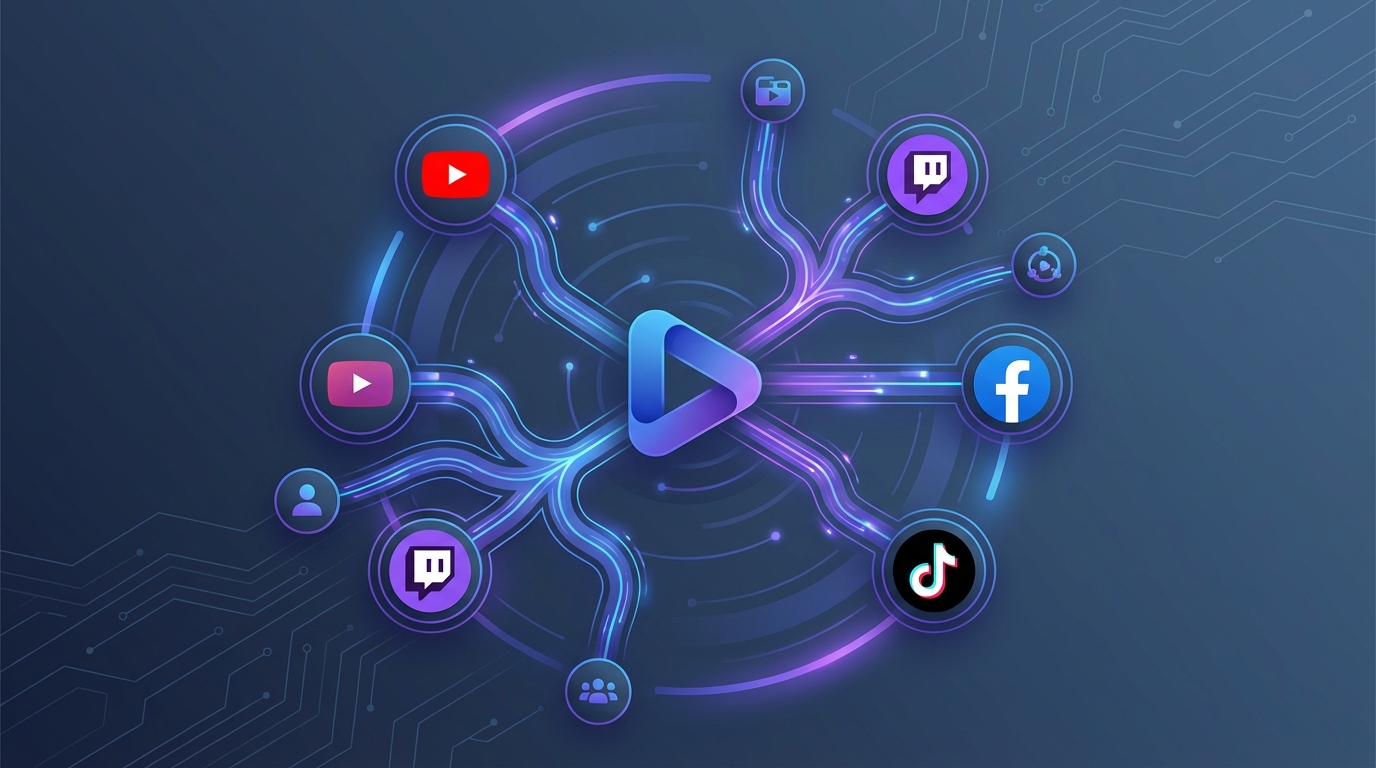
Multistreaming to Multiple Platforms at Once
Stream to YouTube, Twitch, Facebook, TikTok, and more simultaneously from a single live stream. Learn how to set up and manage multistreaming on playout.video.
Introduction
Multistreaming is the ability to broadcast your live stream to multiple platforms at the same time from a single source. Instead of choosing between YouTube and Twitch, you stream to both (and more) simultaneously, maximizing your reach without any extra effort or quality loss.
playout.video handles all the encoding and distribution in the cloud, so adding more destinations doesn't affect your stream quality or require more bandwidth on your end.
Why Multistream?
Maximize Your Audience
Every platform has a different audience. YouTube viewers may not use Twitch, and TikTok users may never visit Facebook. By streaming to all of them at once, you reach viewers wherever they prefer to watch.
No Quality Loss
Unlike software-based multistreaming tools that re-encode your stream for each destination (reducing quality), playout.video encodes once in the cloud and distributes to all destinations at the same quality level.
No Extra Bandwidth
Since everything runs in the cloud, adding more destinations doesn't use more of your internet bandwidth. Whether you stream to 1 platform or 10, the resource usage on your end is zero.
Grow Faster
More platforms means more discovery opportunities. A viewer who finds you on TikTok might become a regular on your YouTube channel. Cross-platform presence accelerates growth.
Supported Platforms
playout.video supports multistreaming to 20+ platforms:
OAuth-Connected Platforms
YouTube: the largest platform for 24/7 streams
Twitch: the go-to for gaming and entertainment
Facebook: pages, groups, and personal profiles
TikTok: massive mobile-first audience
Instagram: Instagram Live streaming
LinkedIn: professional and business streaming
Custom RTMP Platforms
Rumble
Kick
Telegram
Steam
Amazon Live
DLive
X (Twitter)
Any service that accepts an RTMP URL and stream key
Setting Up Multistreaming
Step 1: Connect Your Channels
Before adding destinations, connect your platform accounts:
Go to Channels from the main navigation
Click Connect Channel for each platform
Complete the OAuth authorization (or note your RTMP credentials for custom platforms)
You only need to connect each channel once. After that, it's available as a destination for any of your streams.
Step 2: Add Multiple Destinations
On your live stream's management page:
Click Destinations in the sidebar
Click Add Destination
Select a connected channel or choose Custom RTMP
Configure any platform-specific settings
Enable Auto Start so it goes live when the stream starts
Repeat for each platform you want to stream to
Step 3: Start Your Stream
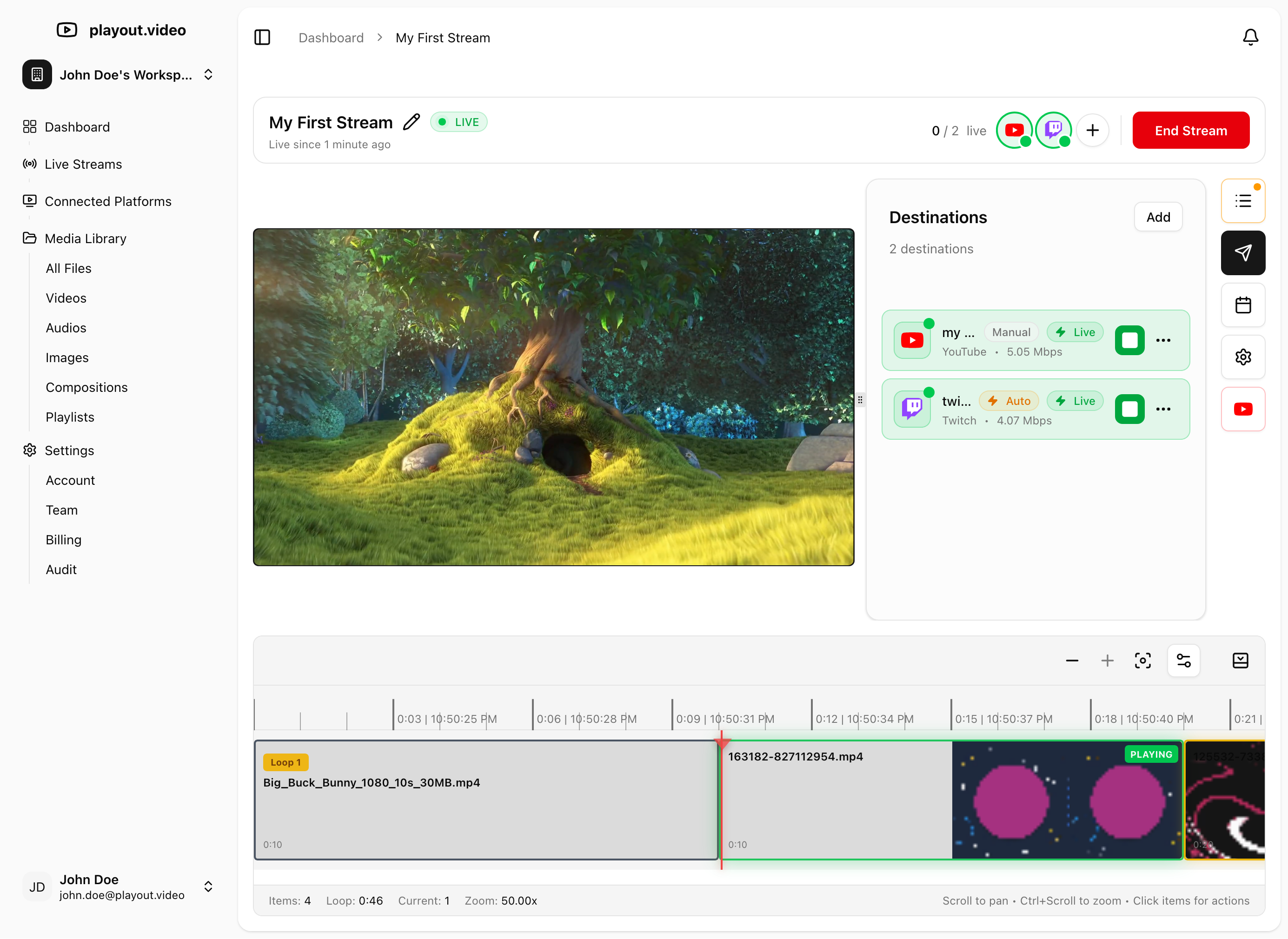
Click Start Stream. All destinations with Auto Start enabled will begin broadcasting simultaneously. You'll see the status of each destination in the Destinations panel.
Managing Destinations During a Live Stream
Starting a Destination Mid-Stream
You can add a new destination while the stream is already running:
Click Add Destination in the Destinations panel
Configure the new destination
Click Start on that specific destination
The new platform starts receiving your stream immediately, without affecting other destinations.
Stopping a Single Destination
To stop streaming to one platform without affecting others:
Find the destination in the Destinations panel
Click Stop on that specific destination
Other destinations continue broadcasting normally.
Monitoring Destination Health
The Destinations panel shows real-time status for each platform:
Live: actively broadcasting
Starting: connecting to the platform
Stopped: not broadcasting
Error: connection issue (check credentials or platform status)
Platform-Specific Tips for Multistreaming
YouTube + Twitch
This is the most common multistreaming combination. Tips:
YouTube is better for discoverability and long-term watch hours
Twitch is better for real-time community interaction
Both platforms handle 24/7 streams well
Adding TikTok
TikTok has a massive mobile audience, but some considerations:
Vertical content performs best on TikTok. Consider using playout.video's 9:16 aspect ratio setting
TikTok may have minimum follower requirements for live streaming
TikTok viewers tend to have shorter attention spans, so engaging content is key
Adding Facebook
Facebook streaming tips:
Stream to a Facebook Page rather than a personal profile for better analytics and reach
Facebook notifies your page followers when you go live
Facebook Groups can also receive live streams for community engagement
Custom RTMP Platforms
For platforms like Rumble, Kick, or Telegram:
Get the RTMP URL and stream key from the platform's streaming settings
Add as a Custom RTMP destination in playout.video
Give it a recognizable name so you can identify it in your destinations list
Scheduling Multistream Destinations
You can automate when specific platforms go live using the scheduling feature:
Example: Peak hours on TikTok
Create a schedule to Start TikTok Destination at 6:00 PM daily
Create a schedule to Stop TikTok Destination at 11:00 PM daily
YouTube and Twitch run 24/7 via Auto Start
This lets you target platform-specific peak hours without manual intervention.
For more on scheduling, see Scheduling Streams and Automated Actions.
Best Practices
Start with 2-3 Platforms
If you're new to multistreaming, start with 2-3 platforms and expand as you get comfortable. YouTube + Twitch is a great starting combination.
Optimize for Each Platform
Different platforms have different optimal settings:
YouTube: 16:9 landscape, longer content works well
TikTok: 9:16 vertical, short and engaging content
Twitch: 16:9 landscape, gaming categories are popular
Facebook: 16:9 landscape, community-focused content
If your content is primarily for one platform's format, consider creating separate streams with different aspect ratios for different platform groups.
Monitor Analytics
Check each platform's analytics to understand where your audience is growing fastest. Focus your content strategy on the platforms that perform best.
Use Auto Start
Enable Auto Start on all your primary destinations so you don't have to manually start each one. This is especially important for scheduled streams.
Troubleshooting
One destination fails while others work?
Check the specific platform's status and your credentials
Try reconnecting the channel in the Channels page
For Custom RTMP, verify the URL and stream key are still valid
Stream quality differs between platforms?
playout.video sends the same quality to all destinations
Perceived quality differences are usually due to each platform's own transcoding and player
Too many destinations causing issues?
playout.video handles distribution in the cloud, so the number of destinations shouldn't cause quality issues
If you experience problems, check each destination individually to isolate the issue
Next Steps
Connecting Streaming Platforms: detailed platform connection guide
Custom RTMP Destinations: set up any RTMP-compatible platform
How to Stream to YouTube, Twitch, and TikTok Simultaneously: step-by-step tutorial
Scheduling Streams and Automated Actions: automate destination timing