Using the Overlay and Composition Editor
Add logos, text, captions, stickers, audio visualizers, and now-playing displays to your live stream using the playout.video composition editor.
Introduction
The Composition Editor is playout.video's built-in visual editor for creating overlay-rich video segments for your live stream. You can add logos, text, captions, stickers, audio visualizers, now-playing displays, and more: all without any design software or technical skills.
Compositions are standalone media items that combine background content with overlay elements. Once created, you add them to your stream's playlist alongside regular videos. When a composition plays in your stream, all overlays are rendered together into the final output.
One of the most powerful workflows is editing directly from playlist items while your stream is running. From a playlist item's Edit button, you can:
edit an existing composition and save a new version, or
edit a video in the composition editor and save it as a new composition that replaces that video item in the playlist.
In both cases, you can push updates to the live stream without stopping playback.
What Is a Composition?
A composition is a visual layout that combines multiple overlay elements on a canvas. Think of it as a design template for a segment of your stream. For example:
A lo-fi music composition: background image + audio visualizer + now-playing display + channel logo
A starting soon composition: branded background + countdown text + social media handles
A intermission composition: background video loop + "Be right back" text + logo
Compositions live in your media library just like videos. You can reuse them across multiple streams and playlists.
Accessing the Composition Editor
There are several ways to open the composition editor:
From the Media Library
Navigate to Files in the main navigation
Click the Create button
Select Composition
Choose a name and aspect ratio
The editor opens so you can add overlays before saving

During Stream Creation
When creating a new live stream, you can add compositions to your playlist if we select multiple audio, video or image items.
Click Create Composition in the playlist setup step
The editor opens inline so you can design your composition as part of the stream setup
Pick a video and audio, click Add
Composition editor pops up

From the Playlist
Open your stream's management page
Go to the Playlist tab
Find the item you want to change
Click the playlist item's Edit button
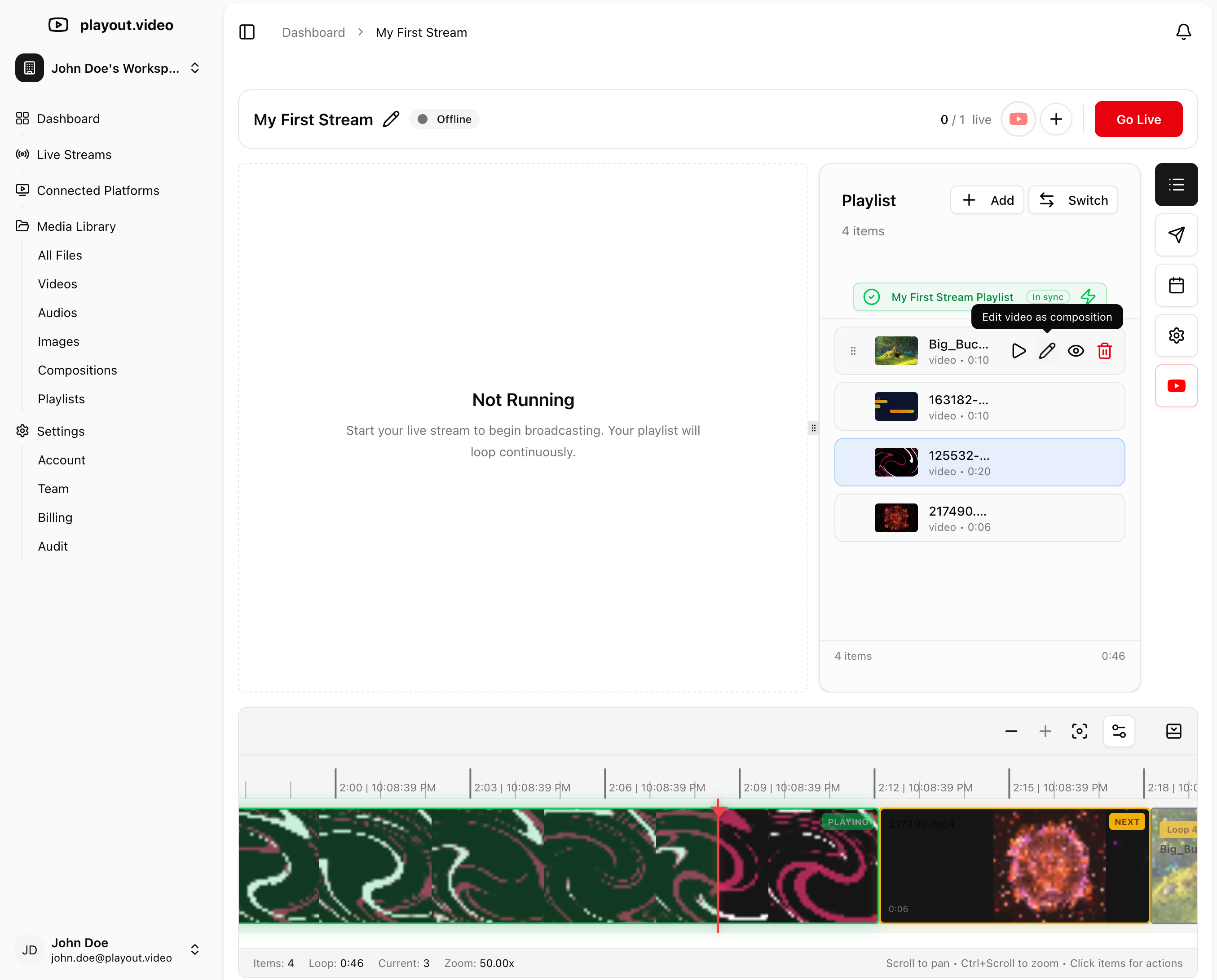
If it's a composition item, the composition opens in edit mode
If it's a video item, the composition editor opens in video-edit mode

This is the recommended path when your stream is already live and you need fast on-the-fly overlay updates.
Dedicated Editor Page
Each composition has its own editor page at /composition/{compositionId}. You can navigate there directly from any composition link in the app.

Overlay Types
The editor sidebar provides access to all overlay types. Click an icon to open its panel, then add elements to the canvas.
Video
Add video clips as overlay layers on your composition:
Click Video in the sidebar
Browse or search for video content
Click to add the video to the canvas
Position and resize by dragging
Videos play as part of the composition's timeline. You can trim their start and end points using the timeline editor at the bottom of the canvas.
Image
Add your channel logo, watermark, or any image:
Click Image in the sidebar
Upload an image or select from available stock images
Position it on the canvas by dragging
Resize by dragging the corner handles
Best practices:
Use PNG with transparency for logos so the background doesn't show
Place logos in a corner where they won't obstruct important content
Keep logos small enough to be visible without being distracting

Text
Add custom text for titles, announcements, or branding:
Click Text in the sidebar
Choose from text style presets or start with a blank text element
Type your content and customize the appearance: font, size, color, background, and alignment
Position and resize on the canvas
Common uses:
Channel name or tagline
"Subscribe" reminder
Schedule information
Social media handles

Captions
Add captions or subtitles to your composition:
Click Captions in the sidebar
Configure caption style (font, size, color, background)
Position the caption area on the canvas
Captions improve accessibility and help viewers who watch without sound.
Audio
Add background music or sound effects to your composition:
Click Audio in the sidebar
Upload audio files or browse available sounds
Adjust volume and timing on the timeline
Audio overlays play alongside any video content in the composition.
Audio Visualizer
The audio visualizer creates a dynamic visual representation of your composition's audio, perfect for music channels and lo-fi streams:
Click Visualizer in the sidebar
Choose a visualizer style
Customize colors to match your branding
Position and resize on the canvas
The visualizer reacts to the audio playing in the composition, creating an engaging visual experience for viewers.
Ideal for:
Lo-fi music streams
Podcast streams
Ambient/relaxation channels
Any stream where audio is the primary content

Now Playing
Show viewers what's currently playing:
Click Now Playing in the sidebar
Configure the display style (text format, font, colors)
Position on the canvas
The Now Playing overlay displays track information, which is especially useful for music channels where viewers want to know what song is playing.

Working with the Canvas
Aspect Ratios
The composition editor supports multiple aspect ratios to match your streaming needs:
16:9 (Landscape): standard for YouTube, Twitch, and most platforms
9:16 (Portrait/Vertical): ideal for TikTok, Instagram Reels, YouTube Shorts
1:1 (Square): works well for Instagram and Facebook
The aspect ratio is set when you create the composition and should match your stream's aspect ratio for the best results.
Timeline
The timeline at the bottom of the editor controls when each overlay appears and disappears during the composition's playback:
Drag overlay bars to change when they appear
Resize bars to change how long they're visible
Layer order in the timeline corresponds to the visual stacking order on the canvas
Layering
Overlays are stacked in layers. Elements added later appear on top of earlier ones. You can:
Reorder layers to control which elements appear in front
Show/hide layers to temporarily disable overlays without deleting them
Preview
The editor includes a preview that shows how your composition will look with all overlays applied. Use this to fine-tune positioning and timing before saving.
Versioning
Every time you save a composition, a new version is created. This means:
You can load previous versions from the settings panel to revert changes
Your stream continues using the version that was active when the playlist was last updated
After editing a composition, you may need to update your stream's playlist for the changes to take effect
Using Compositions in Your Stream
Compositions are added to your stream just like videos:
Open your stream's management page
Go to the Playlist tab
Click Add and select your composition from the media library
Drag to reorder it within the playlist
When the stream reaches a composition in the playlist, it renders all the overlays together and plays the result as a single video segment. The composition is rendered once and cached, so subsequent plays use the cached version for efficiency.
Updating a Running Stream
If you edit a composition while your stream is running:
Open your stream's management page and go to Playlist
On the composition item, click Edit
Make your changes in the composition editor and save (this creates a new version)
Return to the stream's management page
The system detects that the composition has been updated
Click Update Playlist to push the new version to the running stream
The next time the composition plays, it will use the updated version
This lets you iterate on overlays in real time without stopping or recreating the stream.
Editing a Video Item as a Composition (from Playlist)
You can also click Edit on a video item in the playlist:
Open your stream's management page and go to Playlist
On a video item, click Edit
The composition editor opens with that video as the background layer
Add overlays (text, logo, visualizer, now-playing, etc.)
Click Save & Apply
A new composition is created from your edit
The playlist item is updated by replacing the original video item with the new composition at the same position
If that item is currently playing, the system applies the change with smart timing so the transition is smooth for viewers.
Tips for Great Overlays
Keep It Clean
Don't overcrowd the canvas with too many overlays
Leave the main content area clear and visible
Use 2-4 overlay elements maximum for a clean look
Consistent Branding
Use your brand colors across all text and overlay elements
Keep your logo in the same position across compositions
Use consistent fonts for a professional appearance
Readability
Make sure text is large enough to read on mobile devices
Use contrasting colors (light text on dark backgrounds, or vice versa)
Add a semi-transparent background behind text for better readability over video
Performance
Use optimized images (PNG for logos, JPG for backgrounds)
Keep image file sizes reasonable (under 2MB for overlays)
Shorter compositions render faster than very long ones
Troubleshooting
Overlay not showing on the stream?
Make sure the overlay is visible (not hidden) in the editor
Check that the overlay is positioned within the canvas area
Save your composition and update the stream's playlist
Composition changes not appearing on the stream?
Open the composition from the playlist item's Edit button and save your changes
After saving, go to the stream's management page
Check if the playlist update badge is showing
Click Update Playlist to push the new composition version
I edited a video item, but I still see the original video in playlist
Make sure you clicked Save & Apply (not just close)
Confirm the save completed successfully in the editor
Refresh the playlist view to verify the video item was replaced by a composition
If needed, click Update Playlist to push the updated playlist to the running stream
Image overlay looks blurry?
Use a higher resolution source image
For logos, use high-resolution PNG files
Make sure you're not stretching a small image to a large size
Audio visualizer not reacting?
Verify that your composition has audio content (an audio or video overlay with sound)
Check that the visualizer is properly configured and visible
Text is hard to read?
Add a background color behind the text
Increase the font size
Use a contrasting color combination
Next Steps
Best Practices for Overlay Design on Live Streams: detailed design tips
Building and Managing Playlists: manage your stream content
How to Create Your First 24/7 Live Stream: complete setup guide