Creating and Managing Overlay Templates
How to build, save, apply, and update Overlay Templates so every show, playlist, and calendar block on your stream has the right branding without manual setup.
Introduction
Overlay Templates let you save a full Composition design as a reusable preset. Apply it to a playlist, a calendar entry, or both. Update the template and every place it's used updates automatically.
This guide walks through building one, applying it, and managing your library of templates.
Step 1: Build the Overlay Template
Go to the Media Library, click New, select New Overlay Template, give it a name, and add the overlay elements you want:
Logo in a corner
Lower thirds for host and guest names
Now Playing overlay
Image graphics for frames or watermarks
Audio visualizer if it's a music context
Get the design exactly the way you want it. Test it visually, the template will look exactly like this everywhere it's applied.
For element-by-element setup see Adding a Logo and Lower Thirds.
Add the base media
The Base media panel in the left toolbar adds a placeholder that marks where the playlist item plays. Most templates have exactly one, full-canvas, with the overlays layered on top. It appears as a translucent stage labelled Base media · whole item.
Add only one unless you want picture-in-picture. A second copy shows the same video twice; the editor draws it in red on the canvas and on the timeline, and mutes its audio at playback.
Choose when each overlay shows
Select an overlay and set When to show: throughout the entire video, during the intro, during the outro, at a specific time, or periodically. This is how a template works on videos of any length: an outro overlay lands in the last seconds of a 40-second clip and of a two-hour archive alike.
The timeline under the canvas draws each overlay where its setting puts it, on a preview item of a length you pick in the header (Preview as 2 minutes by default). Drag a bar's free edge to change the timing.
Preview on a real video
Open the Preview as menu and choose Choose a video..., or select the base media and click Preview with a video, or double-click the base media on the canvas. The template is shown applied to that video at its real length, with its audio. The preview video is not saved with the template.
For the details see Timing Overlays in a Template.
Step 2: Save
In the Composition Editor toolbar, click **Save **.
In the dialog:
Name: descriptive (Tuesday Interview Show, Sunday Service, Horror Night)
Description (optional), what this template is for, who it's used by
Click Save
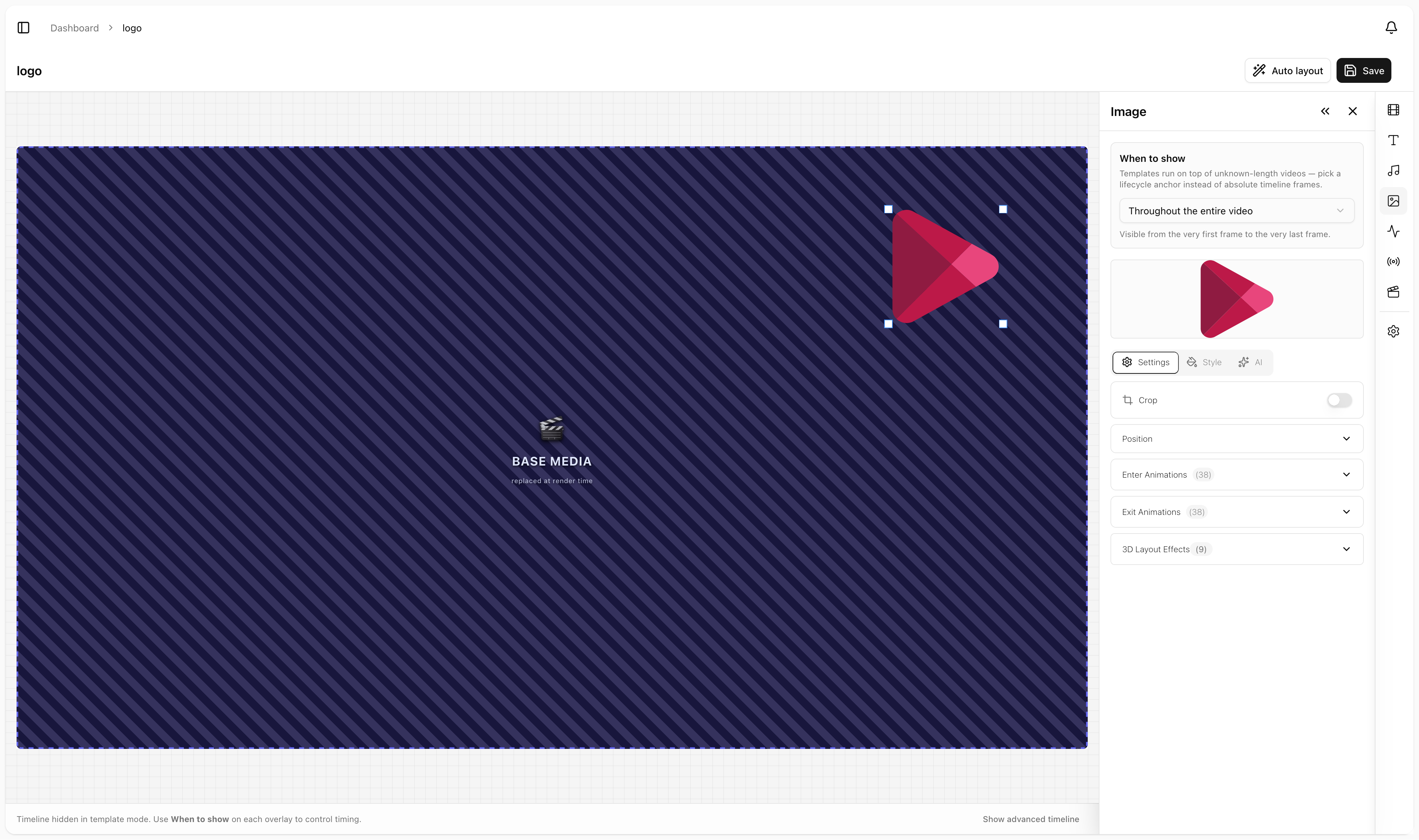
The template now appears in the templates picker.
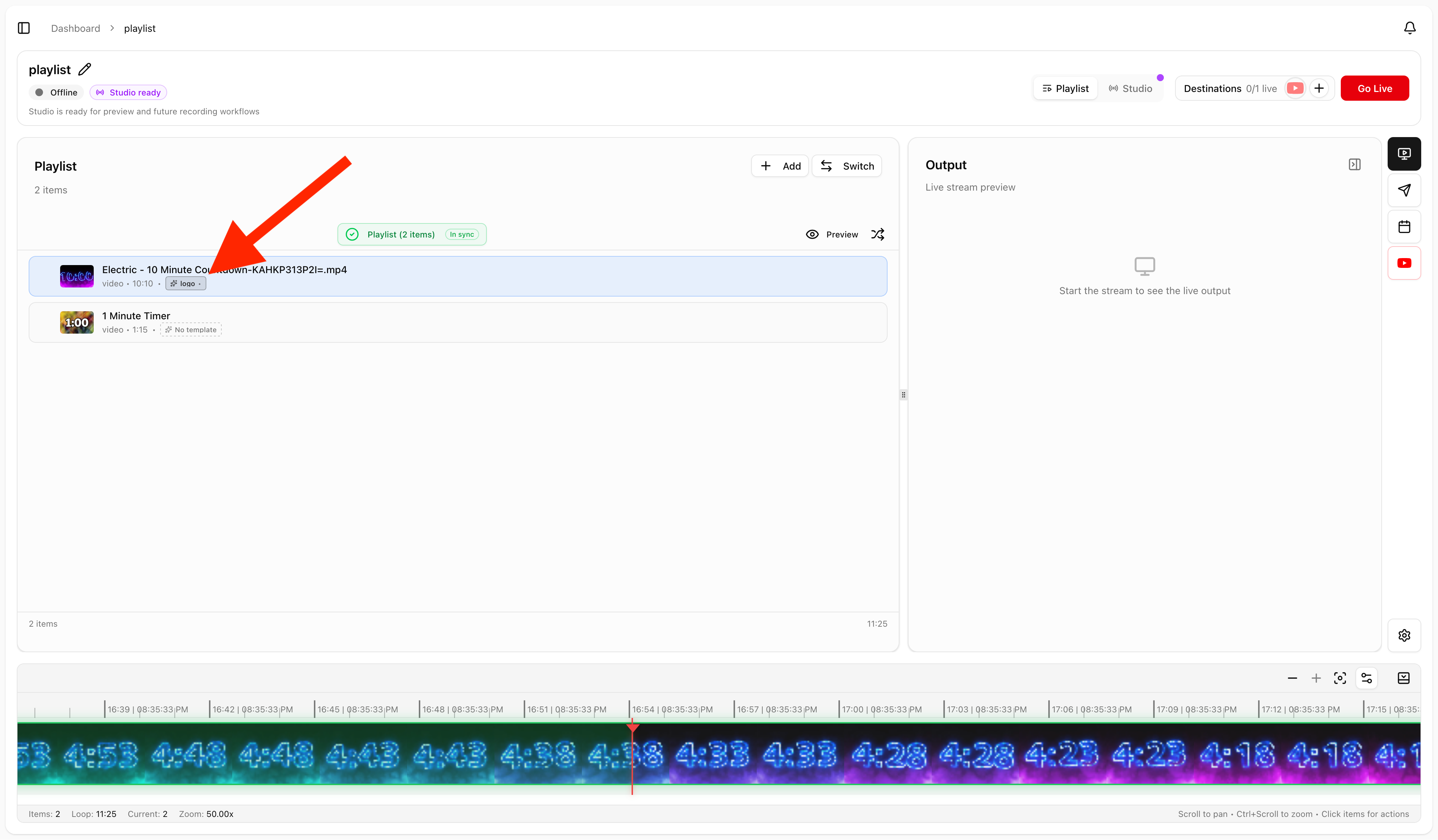
Step 3: Apply to a Playlist
Open any playlist. In the playlist settings, find the Overlay Template picker. Choose your template.
Every video in that playlist now plays with the template's overlay automatically.
If the playlist plays on a Live Channel, those overlays are visible whenever the playlist is active. If the playlist is part of a calendar block, the overlays are visible during that block.
Step 4: Apply to a Calendar Entry
When you create or edit a Calendar block, the entry dialog has an Overlay Template option. Pick one.
The block plays with that template's overlay during its scheduled window. When the block ends and the calendar moves to the next entry, the overlay switches accordingly.
Step 5: Update a Template
Open the Composition Editor for the template (in the Templates panel, click the template you want to edit). Make your changes, move the logo, update the lower-third style, swap the background image. Click Save.
The change propagates to every place the template is used. Saving publishes a new version of the template, and every playlist, playlist item and calendar entry using it shows that version: a live stream switches within seconds, and a calendar entry takes it from its next slot.
This is the magic of templates: change one thing, change everywhere.
Keep One Place on an Older Version
To keep a playlist or a calendar entry on the version it shows now, click Latest next to its template picker (for a single playlist item, the pin icon in its row). It turns into Pinned, and that place keeps its version when you save the template again; the picker says when a newer version has been published since. Click Pinned to follow the latest version again.
Managing Your Template Library
As you build out your channel, you'll accumulate templates. Keep them tidy:
Name them descriptively. Tuesday Interview Show beats Template 4.
Group by show or context. Use prefixes, Show A, Default, Show A, Sponsor Segment, Show A, Closing.
Delete unused templates. If you stop using one, remove it. Templates pile up.
Duplicate to iterate. When you want to try a variant, duplicate the existing template, modify the copy, test it. Don't experiment on a live template.
Use Cases
Show-Per-Day Programming
A network with a different show each weekday. Build one template per show:
Monday, Coffee Talk
Tuesday, Tech News
Wednesday, Wellness
Thursday, Throwback
Friday, Friday Mix
Apply each template to its show's calendar block. The right overlay shows up on the right day.
Sponsor Segments
Build a sponsor template for each sponsor:
Sponsor A, Brand Bug + Lower Third
Sponsor B, Brand Bug + Lower Third
Apply to specific calendar blocks (sponsor segments) or specific playlist items.
Themed Nights
A movie channel with themed nights gets a template per theme:
Horror Night
Sci-Fi Night
Classics Sunday
The Calendar swaps templates automatically as themes rotate.
Multi-Brand Channels
If you operate multiple brands on one stream (e.g., a network of small channels), each brand gets its own template. The stream switches branding as content rotates.
Pro Tips
Build a "default" template first. A clean, simple overlay you fall back to. Use it on any content that doesn't have a specific theme.
Match templates across formats. If your weekly interview also runs as a re-air, both should use the same template so the show looks consistent.
Preview before going live. In the editor, preview the template on a real video from the playlist you will apply it to. Then apply it to a test playlist and play it on a non-broadcast destination.
Version your templates over time. Show A, v1 in Q1, Show A, v2 in Q2 with refreshed branding. Keep both around briefly during the transition.
Don't make every template wildly different. A coherent visual system across templates feels more professional than a free-for-all.
Common Questions
Can I have multiple templates on one playlist? No, one template per playlist. For variation, split into multiple playlists with different templates.
What if a video has its own composition that conflicts? The template's overlays render on top. Item-level compositions still work, just be aware they layer with the template.
Can a template show live data or a web page, like an overlays.uno ticker? No. A template is applied to each video ahead of time, so what it shows is fixed for that video. For anything live, use Live Studio: a web overlay on top of your playlist, or on Business a graphic fed from a Google Sheet.
Can I export a template to use on another stream? Yes, duplicate or copy templates between streams in your account.
What about transitions between templates? When the calendar transitions between blocks with different templates, the overlay swaps cleanly. There's no fade by default.
Why does the editor's timeline say 2 minutes? It is a preview length, not your video's length. Change it in the timeline header, or preview on a real video and the timeline takes that video's length. See Timing Overlays in a Template.