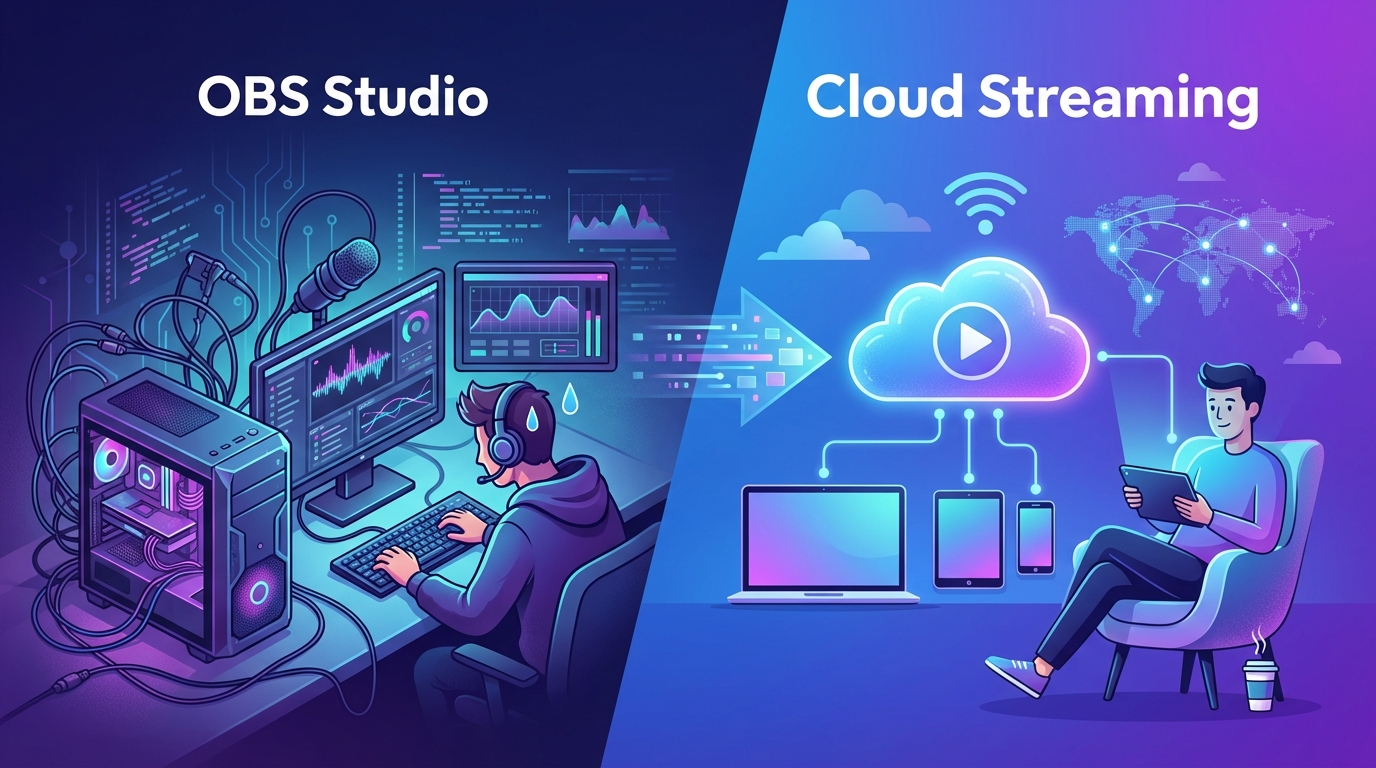
OBS vs Cloud Streaming: Why You Don't Need Hardware Anymore
Compare OBS Studio with cloud-based streaming platforms like playout.video. Discover why cloud streaming eliminates the need for dedicated hardware, constant monitoring, and technical headaches.
The Traditional Way: OBS and Hardware
For years, OBS Studio (Open Broadcaster Software) has been the go-to tool for live streaming. It's free, open-source, and incredibly powerful. But running a 24/7 live stream with OBS comes with significant challenges that many creators don't anticipate until they're deep into the process.
What OBS Requires for 24/7 Streaming
To run a continuous stream with OBS, you need:
A dedicated computer: a PC or Mac that runs 24 hours a day, 7 days a week, doing nothing but streaming
Reliable hardware: a capable CPU and GPU for real-time encoding (budget: $500-2,000+)
Stable internet: a consistent upload speed of at least 5-10 Mbps that never drops
Uninterruptible power: a UPS (battery backup) to handle power outages
Cooling: a computer running 24/7 generates heat and needs adequate cooling
OBS configuration: technical knowledge to set up scenes, sources, encoding settings, and output
Monitoring: someone needs to check periodically that the stream hasn't crashed
Manual restart: when OBS crashes (and it will), someone needs to restart it
The Hidden Costs of OBS 24/7 Streaming
Beyond the hardware purchase price:
Electricity: a dedicated streaming PC running 24/7 costs $20-50/month in electricity
Internet: you may need to upgrade your internet plan for reliable upload speeds
Hardware replacement: components wear out faster when running continuously. Expect to replace parts every 1-2 years
Your time: troubleshooting crashes, updating software, managing configurations
Opportunity cost: that computer can't be used for anything else while streaming
Estimated total cost of OBS 24/7 streaming: $100-200/month (when you factor in hardware depreciation, electricity, internet, and time)
The Cloud Way: No Hardware Needed
Cloud-based streaming platforms like playout.video take a fundamentally different approach. Instead of running software on your computer, everything happens on cloud servers.
How Cloud Streaming Works
You upload your videos to the cloud
You configure your stream (playlist, destinations, overlays) through a web browser
You click "Start"
Cloud servers handle all encoding and broadcasting
You close your browser and go about your day
The stream runs on professional infrastructure designed for 24/7 operation. Your computer, your internet connection, and your electricity bill are completely out of the equation.
Side-by-Side Comparison
Feature OBS (Hardware) Cloud Streaming Setup time Hours to days 5 minutes Hardware required Dedicated PC ($500-2,000+) None (web browser only) Technical skill Advanced (encoding, bitrate, scenes) Beginner-friendly 24/7 reliability Depends on your hardware and internet Built-in redundancy and auto-recovery Electricity cost $20-50/month $0 Internet dependency Constant upload required Only needed during setup Crash recovery Manual restart required Automatic Multistreaming Requires plugins or third-party tools Built-in, unlimited destinations Remote management Requires remote desktop software Any device with a browser Overlays Complex scene configuration Visual drag-and-drop editor Scheduling Requires scripts or third-party tools Built-in scheduling with cron Monthly cost $100-200 (hardware + electricity + internet) $29-79 (plan only)
Where OBS Still Wins
To be fair, OBS has advantages in certain scenarios:
Live Camera Streaming
If you're streaming a live camera feed (webcam, DSLR, capture card), OBS is the right tool. Cloud streaming platforms are designed for pre-recorded content, not real-time camera input.
Complex Real-Time Scenes
OBS excels at complex, real-time scene compositions: multiple camera angles, live screen capture, browser sources, and interactive widgets. If your stream requires real-time input mixing, OBS is more flexible.
Zero Monthly Cost
OBS itself is free. If you already have a capable computer and don't mind the electricity and maintenance costs, OBS has no subscription fee.
Full Control
OBS gives you complete control over every encoding parameter, bitrate, keyframe interval, and output setting. For advanced users who need precise control, this flexibility is valuable.
Where Cloud Streaming Wins
24/7 Pre-Recorded Content
This is where cloud streaming is the clear winner. If your stream plays pre-recorded videos on a loop (which is the vast majority of 24/7 streams), cloud streaming is simpler, more reliable, and often cheaper.
Reliability
Cloud infrastructure is designed for 24/7 operation with:
Redundant servers (no single point of failure)
Automatic recovery from interruptions
Professional-grade network connectivity
No dependency on your home internet or power
Ease of Use
No technical knowledge required:
Upload videos through a web interface
Build playlists with drag-and-drop
Add overlays with a visual editor
Connect platforms with one-click OAuth
Schedule actions with a simple form
Remote Management
Manage your stream from anywhere:
Your phone on the bus
Your laptop at a coffee shop
A tablet on vacation
Any device with a web browser
With OBS, you'd need remote desktop software and a reliable connection to your streaming PC.
Cost Efficiency
When you add up all the costs of running OBS 24/7:
Expense OBS (Monthly) Cloud (Monthly) Hardware depreciation $30-80 $0 Electricity $20-50 $0 Internet upgrade $10-30 $0 Platform subscription $0 $29-79 Total $60-160 $29-79
Cloud streaming is often cheaper, and you get professional reliability, auto-recovery, and zero maintenance on top.
Multistreaming
OBS can stream to one destination natively. For multistreaming, you need plugins (like obs-multi-rtmp) or third-party services. Cloud streaming platforms include multistreaming to unlimited destinations as a built-in feature.
The Hybrid Approach
Some creators use both:
OBS for live, interactive streams (gaming sessions, Q&As, live events)
Cloud streaming for 24/7 automated content (music channels, content compilations, always-on channels)
This gives you the best of both worlds: OBS for when you're actively streaming, and cloud for when you want your channel running without you.
Making the Switch from OBS to Cloud
If you're currently running a 24/7 stream with OBS and want to switch to cloud:
Step 1: Export Your Content
Save all the videos you're currently using in OBS to your computer (if they aren't already saved as files).
Step 2: Upload to playout.video
Upload your video files to the playout.video media library. You can also import directly from YouTube if your content is already on YouTube.
Step 3: Recreate Your Setup
Build your playlist to match your OBS playlist order
Add overlays using the composition editor to match your OBS scenes
Connect your streaming platforms as destinations
Set up any schedules you were managing manually
Step 4: Go Live
Start your cloud stream and verify everything looks correct. Once confirmed, you can shut down your OBS stream and turn off the dedicated PC.
Step 5: Enjoy the Freedom
No more checking if your PC crashed at 3 AM. No more worrying about power outages. No more electricity bills for a computer that does nothing but stream.
Common Concerns About Switching
"I've invested a lot in my OBS setup"
Your OBS knowledge isn't wasted. Understanding streaming concepts (bitrate, encoding, scenes) helps you make better decisions on any platform. And your dedicated PC can now be repurposed for other tasks.
"What about my custom OBS scenes?"
playout.video's composition editor can recreate most overlay setups: logos, text, audio visualizers, now-playing displays, and more. The visual editor makes it even easier than configuring OBS scenes.
"I need real-time features"
If you need live camera input or real-time screen capture, keep OBS for those streams. Use cloud streaming for your 24/7 automated content. The two can coexist.
"Is cloud streaming reliable enough?"
Cloud infrastructure is more reliable than consumer hardware. Professional data centers have redundant power, cooling, and network connections. Auto-recovery handles the rare issues that do occur. Most cloud streams achieve 99.9%+ uptime.
The Bottom Line
OBS is an excellent tool for live, interactive streaming. But for 24/7 automated streams playing pre-recorded content, cloud streaming is simpler, more reliable, often cheaper, and requires zero hardware or technical maintenance.
If you're running a 24/7 stream on OBS right now, or thinking about starting one, cloud streaming is worth trying. Start a free trial and see the difference for yourself.
Related articles: